
How to Use Kapwing to Edit Any Video Online?

What Is Kapwing?
If you are a regular viewer of TikTok, Instagram reels, and YouTube shorts, then you have probably seen the watermark “Kapwing” on some videos. It means many video bloggers and content creators widely use the popular online video editing platform – Kapwing. This browser-based tool can redefine your video editing routine, allowing you to create memes and craft engaging multimedia content.
Kapwing is a web-based content editing tool to render video and edit images/clips. It is simple for everyone. The service came into existence in 2017 through the efforts of its co-founders Julia Enthoven and Eric Lu. The tool is a SaaS platform that takes the user the long way around with a lot of IT infrastructure eliminated in the process.
Take it like Google Docs for video editing – you can do it online, it’s a piece of cake, and it’s available anywhere you can get an internet connection. What’s Kapwing’s vision? To let anyone, even an amateur, create really appealing video content for social media effortlessly.
The thing that makes Kapwing different is the way it employs and focuses on simplicity and speed. It is particularly intended for those creators who are living the TikTok life, where fast and social media press-ready formats rule the day. Kapwing makes the lives of marketers, teachers, and just-dabblers a lot easier by allowing them to create new projects such as AI-generated subtitles, memes, and video resizing.
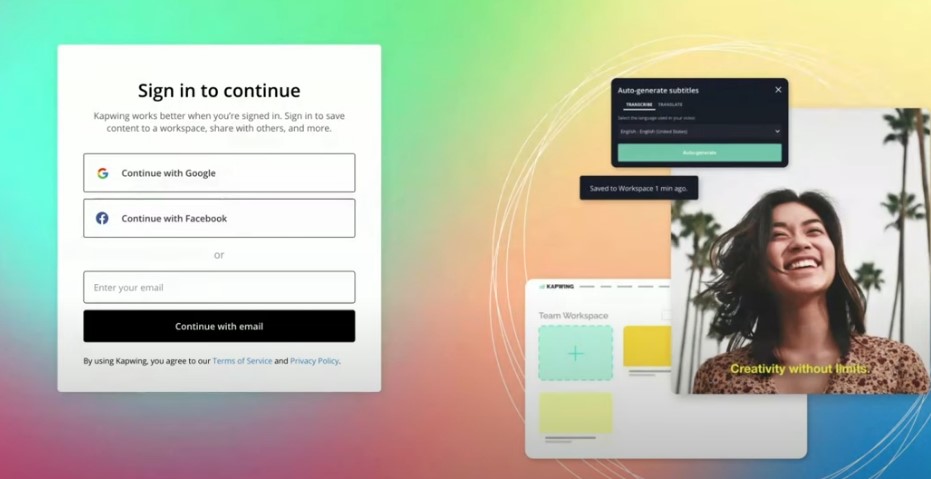
The cloud-based feature of this tool keeps your projects from being stored on your device and makes them available from anywhere. Forget about a laptop that has gone into the blue screen of death!
The automated features of the platform keep attracting users in droves. Subtitling with AI, intelligent video clipping, a single click of a mouse, and one getting a translation of the entire document, tasks that seem to eat up the time from the user’s schedule forever, are now efficiently automated and delivered in one single workout.
Key Features of the Kapwing Video Editing Tool
Kapwing is packed with multiple features both in free and pro versions. Such a function can make the content creation a breeze. The interface of the platform is clean and you won’t feel overwhelmed with
Here is a rundown of all the features you may use with Kapwing:
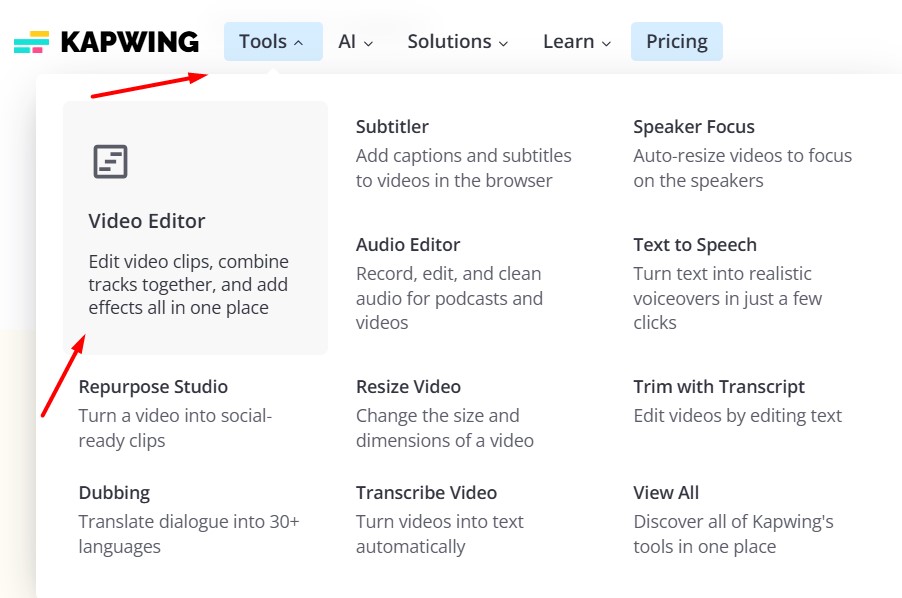
- Video Editor Studio. With a drag-and-drop editing menu for trimming, cropping, and layering videos, images, and audio. It supports 4K resolution for the crisp output;
- AI-Powered Subtitles. Automatically generate and add subtitles in any language to your video. It is a lifesaving tool for people with limited or impaired hearing. Paste a video URL or download it from your Google Drive/Hard Drive. Use the simple menu to generate and then add subtitles with any font, color, and size;
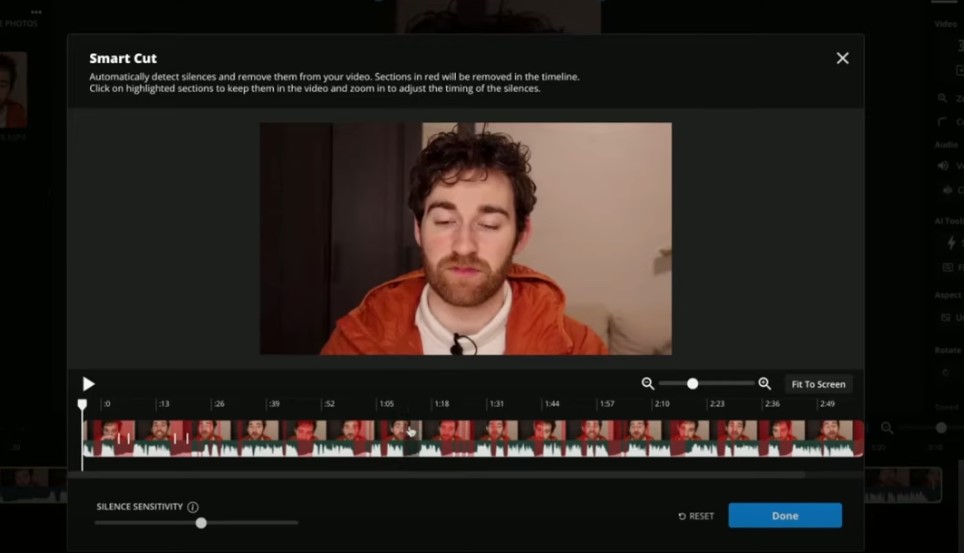
- Smart Cutting Tool. AI detects and removes awkward pauses, silences, and weird noises to speed up the editing of long podcasts and videos for vlogs and tutorials;
- Meme Generator. The tool helps to create memes as shorts in minutes with customizable templates and text overlays. It is a perfect tool for social media managers and creating the viral content;
- Resizing Canvas. With this option, Kapwing users can instantly adjust videos for online platforms like Instagram, TikTok, or YouTube with one click;
- Collaboration Tools for Teams. Share the projects with your team members for real-time feedback and edits. An ideal option for small-to-medium marketing teams;
- Own Stock Media Library. Have access to free stock photos, videos, and audio to improve your projects without hunting for third-party assets and templates;
- Voice Cloning and Text-to-Speech Tools. Generate realistic voiceovers or clone voicing for personalized content;
- Smart Background Remover. You will be able to remove backgrounds for images or videos. Though some users mention that it is less polished than competitors;
- Cloud Storage and Sharing. All the projects are saved online in real time. You can access your saved projects anywhere – on PC and mobile phones. There is no need for local storage.
The best thing is that the pro version of Kapwing actively uses AI tools like smart converters to MP4/AAC, audio enhancers, video avatar editors, B-Roll generator, clip maker from long videos, document to video, dubbing, adding the effect of the direct eye contact with the camera, image extenders, and many other useful features. Get a full list on the official website of the platform.
Pros and Cons of Kapwing
Before starting to use or even pay for all these features offered by Kapwing, weigh all the pros and cons. The following table reflects all the perks and flaws this tool offers.
| Pros | Cons |
| User-friendly interface with intuitive menus | A lot of glitches in the free version |
| A lot of useful tools to edit videos and templates for social media | Billing can be confusing, carefully check what you pay for |
| Cloud-based savings, with real-time collaborations for teams. | Limited advanced features for complex edits compared to Adobe Premiere Pro |
| Accessible anywhere |
Who Should Use Kapwing Video Editing Tools?
Kapwing shines for specific audiences, though everyone can use this simplified video editing tool:
- Social Media Managers. These specialists can resize videos for multiple platforms and create memes in minutes, without any hassle and too much experience;
- Educators. Teachers can add subtitles to their video guides/tutorials/lessons or create engaging presentations with stock media offered by the library of Kapwing;
- Small Businesses. Entrepreneurs can produce professional marketing videos without a big budget or technical skills.
However, you need to keep in mind that professional video editors may find Kapwing under-featured and lacking advanced effects (for example, there is no keyframe animation option). In this scenario, they should look at more profound (and expensive) Adobe Premiere Pro if Final Cut Pro. Kapwing is better used for creating quick and polished video content rather than cinematic pieces.
The most popular ways of using Kapwing cover such creative tasks as:
- Teachers can use the Subtitler to create multilingual lesson clips, helping students learn vocabulary through video;
- Brands can whip up viral memes using Kapwing’s generator, customizing them to current trends;
- Use the AI video creator to generate stock-like B-roll for vlogs, saving time on filming.
How to Use Kapwing – A Step-by-Step Guide
If you intend to get started with Kapwing – it would be easy as pie. The learning curve is minimal with lots of YouTube video tutorials. To edit the first video, you should do the following steps:
- Visit kapwing.com and sign up for a free account using your email or Google account. Though even without an account you can still use many tools, signing in unlocks cloud storage and watermark-free exports;
- From the Home page, pick a tool like Video Editor, Subtitler, or Meme Generator. Alternatively, start a new project in Kapwing’s Studio;
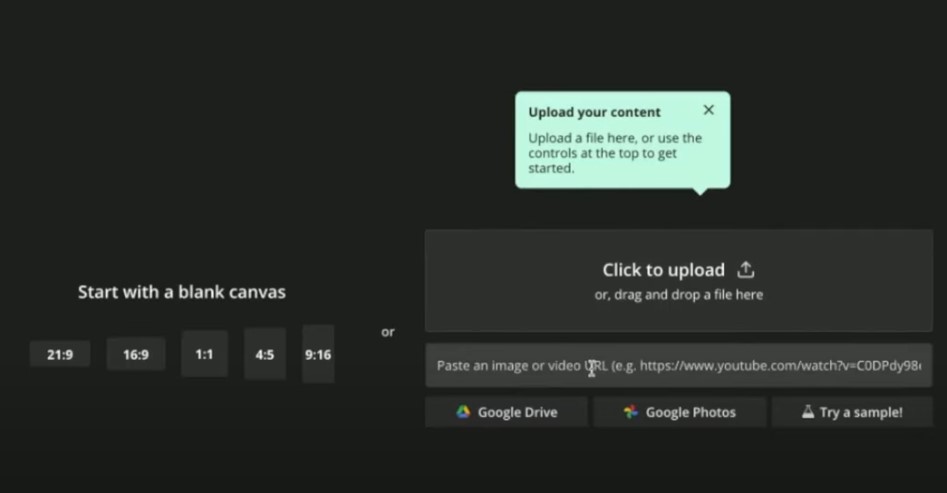
- Upload a video or image from your device, or paste a URL (e.g., from YouTube). Kapwing supports various formats, including MP4, PNG, and GIF;
- Use the drag-and-drop interface to trim, crop, or add text, shapes, and transitions. For subtitles, click “Subtitles” and let AI generate captions, which you can tweak for accuracy;
- Add stock media, apply filters, or use text-to-speech for voiceovers. Resize your video for specific platforms with one click;
- Download your project or share it directly on social media. Free users get watermarked videos, while paid plans offer clean exports;
- Invite team members to edit or review your project in real-time via a shared link.
Kapwing’s Free and Paid Plans
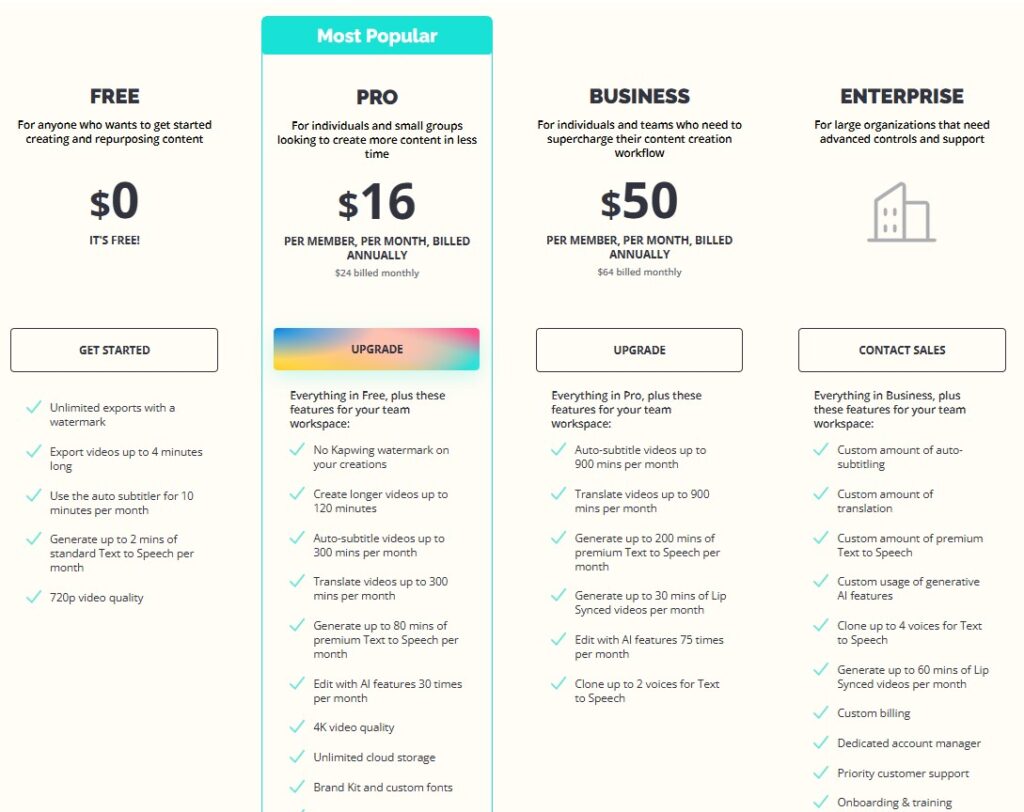
There are a few pricing plans to pick from. There are basic plans and pro plans for solo users along with customized plans for enterprise. You can select among such plans when it comes to Kapwing use regularly:
- Free Plan. It is quite generous for beginners, offering access to most tools. The watermark and 720p limit may deter professionals, but it’s great for casual use;
- Pro Plan. It can be ideal for solo creators or small businesses. The $16/month price on the basic paid plan (only for annual billing) is competitive, especially for watermark-free exports and longer videos;
- Business Plan. This is a customized plan aimed at teams that require collaboration and advanced security. Or for solo creators who want to have access to all the tools that Kapwing offers. The price jump to $50/month (annual) is steep but in most cases justified for small teams and professional content creators;
- Enterprise Plan. This is another level of access for medium-to-large teams who want the best video editing solutions from Kapwing. There is not even a price limit per month or year of use. Send the request to the Support team if you intend to pay for the most exclusive deal from this platform.
As for the prices of Kapwing services, they may change. So make sure to check before paying! The current prices are reflected in the table below (as of May 2025).
| Plan | Price (Monthly) | Price (Annual Billing) | Key Features |
| Free | $0 | $0 | Basic editing tools, watermark on exports, 720p resolution, 7-minute video limit |
| Pro | $24 | $16 | Watermark-free, 6GB uploads, 120-minute videos, 300 minutes of auto AI-based subtitles |
| Business | $64 | $50 | All Pro features, team collaboration, SSO, 10GB uploads, priority support |
| Enterprise | Individual | Individual | All features for companies, with customized terms and personalized assistance |
Keep in mind that many users find the pricing policy of Kapwing non-transparent, especially when it comes to monthly vs. annual billing. There is no no-refund rule because you can’t return money if the subscription turns out to be disappointing for you. For example, if you have accidentally paid for a year instead of one month, they won’t return the money. Be very careful when using their paid services.
Alternative Services to Kapwing
Kapwing isn’t alone in the online video editing space. There are a few alternative tools you can choose instead:
1) Canva
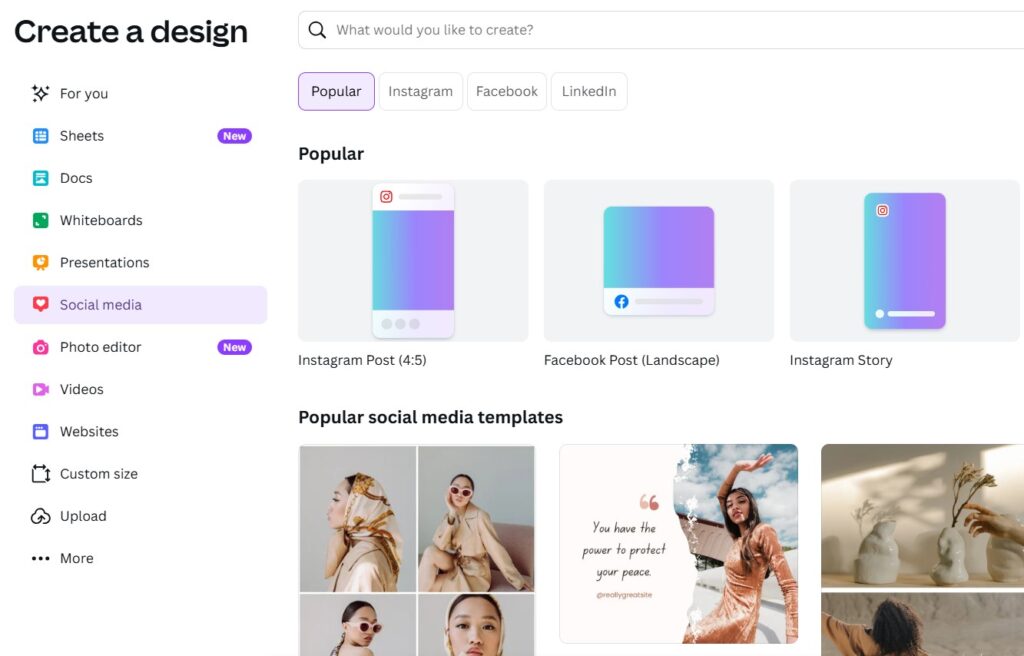
Canva is a design-aimed powerhouse. It is supreme for the creators who seek the best solutions and tools for creating static graphics and simple video editing. Kapwing’s video tools are more profound at some tasks, though, especially for subtitles and resizing. Canva’s lower price ($12.99/month) is appealing, but its video editing package lacks Kapwing’s AI depth.
2) Veed
Veed is a close competitor, offering similar browser-based editing and AI subtitles. Veed’s noise reduction and color correction give it an edge for technical edits, but Kapwing’s Subtitler is more accurate. Also, Kapwing’s collaboration tools are stronger. Veed’s pricing starts at $12/month, being slightly cheaper than Kapwing.
Adobe Express integrates with Adobe’s ecosystem, making it great for users who are already in their lineup. However, its video editing interface is less intuitive than Kapwing’s. And AI features are minimal. At $9.99/month, it’s cheaper but less specialized for creating video content for social media.
4) Clipchamp
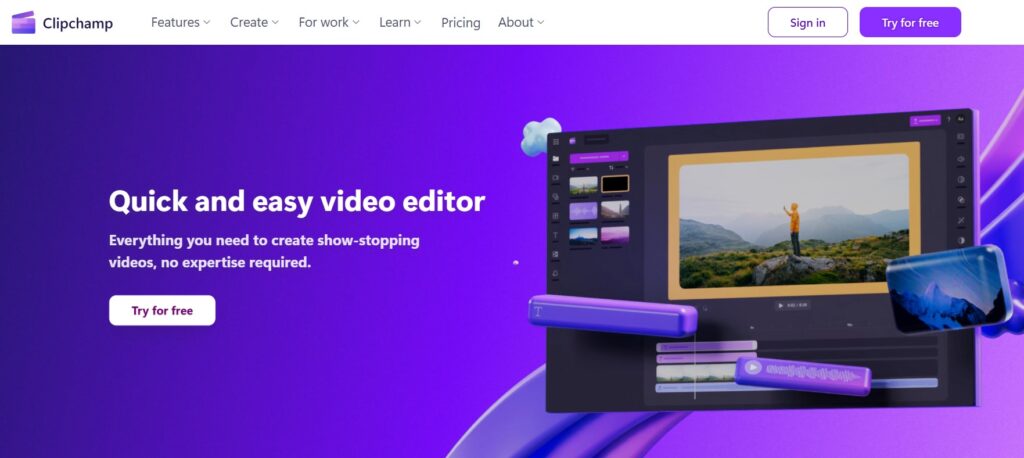
Clipchamp, owned by Microsoft, offers a free editor with no watermark if you use your own files. Its stock media library is amazing, but Kapwing’s AI tools and collaboration features are still more advanced, IMHO. Clipchamp’s $11.99/month plan is budget-friendly but lacks Kapwing’s polish for editing social media content.
The following table will help to compare the features and prices of each service compared to Kapwing.
| Feature/Tool | Kapwing | Canva | Veed | Adobe Express | Clipchamp |
| Free plan | Yes (watermark, 720p) | Yes (watermark on some templates) | Yes (watermark, 720p) | Yes (limited features) | Yes (no watermark with own files) |
| Paid plan (basic) | $16/month (annual) | $12.99/month | $12/month | $9.99/month | $11.99/month |
| AI Subtitles | Yes, many languages | Limited | Yes, less accurate | No | Yes |
| Collaboration with teammates | Real-time, team-focused, special plans | Real-time | Yes | Limited | Basic |
| Ease of use | Very intuitive | Easy | Easy | Moderate | Easy |
| Unique feature | Smart Cut, Meme Generator | Graphic design templates | Noise reduction, color correction | Integration with other Adobe products | Free editor with stock assets |
We should also recommend the bunch of other video editing tools we’ve already tested. For example, you can check out our review of Opus Pro AI video editor.
FAQ
How does Kapwing work?
Kapwing is an online, cloud-based tool for image and video editing. Register, upload media, and paste a URL. Use the tools like Studio, Meme Generator, or Subtitler to create the required format of the video. It is easy to edit by means of the drag-and-drop interface. Export offline or share online. All projects are saved online for easier access if you work in teams.
How to make edits with Kapwing?
You need to upload media to Kapwing’s Studio. For this purpose consider using the in-built drag-and-drop editor. With this tool, you will be able to trim, crop, or layer videos, images, and audio in mere seconds. Add text, transitions, or AI subtitles. Also, you can resize videos for such platforms as TikTok for quicker loading. Paid plans can remove watermarks.
Is Kapwing easy to use?
Yes, even a novice content creator can use its drag-and-drop tools for image or video editing. It is an absolutely beginner-friendly service where you don’t have to download any software. Also, they have dedicated Kapwing’s Reddit thread and YouTube channels for sharing official tutorials.
How to edit the text in Kapwing?
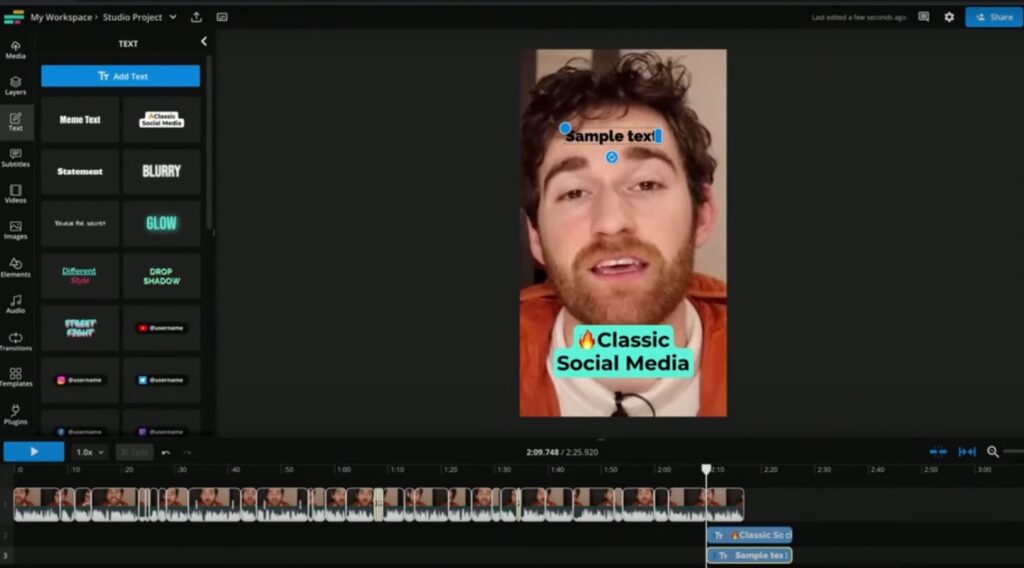
In Kapwing’s Studio, please choose “Text” on the sidebar or timeline. Add any text you need. Then customize the text’s font, size, color, and position. Adjust timing and animation using the panel Settings. Use different layers to manage the text placement. Preview the changes in real-time and export. Premium plans offer more font options.
Conclusion
The Kimli Soft team reviewed a bunch of video editing services but Kapwing definitely stands when it comes to versatility, affordability, and beginner-friendly tools. We especially appreciate its speed and simplicity. The free plan is quite generous too, while the Pro plan with over 50 different tools and features only for $16 per month is basically a giveaway if you are a vlogger or content creator.
If you’ve enjoyed reading this guide, please follow and bookmark our blog. We’d love to see your support and feedback in such a way. The Kimli Soft will continue to post software-related guides and articles, so stay tuned!








1 thought on “How to Use Kapwing to Edit Any Video Online?”