How to Set Up Proxifier Proxy Software?
What Is Proxifier Software?
Imagine a scenario where each app on your computer is capable of slipping through the Internet barriers, without being detected. This is what Proxifier does. This software serves for an overall identification of your Internet traffic, letting the web apps that cannot typically deal with proxy servers perform this task.
Proxifier is a tech-savvy software that acts as a go-between tool for your applications and Internet resources. This means, that when you play games, browse web pages, or send emails – Proxifier can direct your app’s Internet traffic through a proxy server. You can use it with all the usual protocols including HTTPS, SOCKS5, and even HTTP.
The best thing – Proxifier is not only about a safe connection. It’s about connecting smartly. You can configure a sequence of proxies – like the connected links in the chain where your data arrives at one server and then goes to another server afterward. This smart software connects the path making the connection chain faster than before. Imagine it like sending your data through a line of stations, with every station contributing another layer of safety.
Another advantage – you can get a Proxifier key with a license to install the software on Windows, Mac, Linux, and even Android. It is easy to set up – after you have done so, everything will go smoothly. You may establish unique regulations for various apps, taking into account the Proxifier features and factors such as IP addresses or content types.
The Proxifier software package is not only powerful but also a reliable proxy client tool. If one proxy stops working correctly, it automatically switches to another one. This means your connection stays continuous without any interruption in delivering the service. Additionally, it makes certain that even the DNS questions are sent via a proxy which adds extra protection for privacy.
In simple terms, the Proxifier software functions like a hidden tunnel that goes around limits and keeps your privacy safe – without the installation of additional VPN services. You can read more real reviews about Proxifier on Reddit where people share their experiences.
The Key Features:
- It can work with different kinds of proxies like SOCKS 4, SOCKS 4A, SOCKS 5, HTTPS, and HTTP. Also, it supports varied authentication methods;
- You can make a chain of proxies, where balancing loads and having backups improves reliability and performance for connections;
- Provides choices for system DNS and DNS over proxy, assisting in enhancing network privacy and safety;
- Proxifier supports applications that are either 32-bit or 64-bit, such as Windows Services and those being run by different users;
- Create rules for proxification by using application names, IP addresses, hostnames, and port numbers;
- Administer settings through files of profiles that can be encrypted and applied across the entire system;
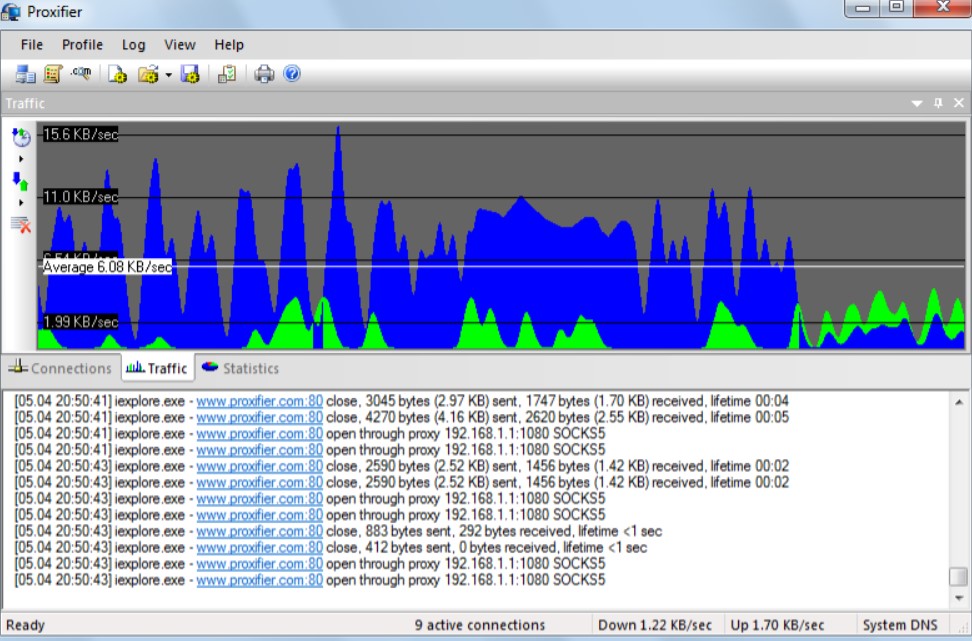
- Get live details about connections, a graph for traffic in real-time, and worldwide statistics to monitor and control your network activity well.
- Logs with enough detail are important for finding and fixing network problems, making sure everything runs well;
As you can see, Proxifier has many features to offer for a decent price.
Benefits of Using Proxifier On Linux, Windows, and Mac OS
Proxifier has many good things going for it and using it on various operating systems like Linux, Windows, and macOS could make your digital life better in many ways. These are the reasons why this tool is a wise choice:
Universal Compatibility
The Proxifier tool is flexible for different operating systems. If you have a PC with Ubuntu 12 or higher, Fedora 16 or above, Windows 7 or any later version, and macOS 10.7 – then you can install the official Proxifier dl file. This compatibility promises that there will be no problems in using Proxifier on your chosen platform.
Streamlined Proxy Management
You can handle multiple proxies smoothly! The interface of Proxifier is user-friendly, allowing you to switch between various networks and protocols easily. You can manage your connections for HTTP, HTTPS as well as SOCKS without any issues – this feature makes it suitable both for beginners and experts.

Customizable Control
Customize Proxifier to suit your specific requirements. This program provides numerous configuration options, allowing you to adjust and fine-tune proxy servers, establish special routing rules, and control how traffic flows to optimize your network performance. The ability for customization is highly beneficial for personal use as well as overseeing bigger networks.
Enhanced Security
Increase your online safety with proxies that direct your internet traffic. The Proxifier tool improves security, especially when you connect to the internet via public or less safe networks. It does this by encrypting and concealing your data transfers. This extra level of protection helps safeguard private information from being seen by others.
Flexibility in Traffic Routing
Proxifier operates as a connector between your applications and proxies, giving you the ability to set specific regulations about how different programs connect with the internet. This is very helpful, especially for those applications that don’t have built-in support for setting up proxy configurations.
Improved Network Performance
Get improved network performance through specific traffic routing. Proxifier can enhance your Internet speed by managing connections cleverly, this could make a significant difference especially if you are working in locations where there is slow or unreliable Internet.
Easy to Use
Even with its strong characteristics, Proxifier is still easy to use. It has a simple interface that makes managing proxies uncomplicated. This simplicity is present across all platforms it supports, so you can access and utilize it easily regardless of your technological skills.
For better privacy, faster connection speeds, and easier handling of complicated network setups – Proxifier serves as a powerful, flexible, and user-friendly proxy client software on Linux, Windows, or macOS.
How to Use Proxifier Software On Linux?
Just like any other software, Proxifier has a direct guide for installation and use. The initial installation and use don’t depend much on the platform, though there are some differences we are going to specify further. Before we start, check the detailed guidelines given by the developers in the special FAQ section on the official website.
We’ll start with the most complicated process – the installation of Proxifier for Linux:
- First and foremost, you need to download the licensed Proxifier package. Use the official website or a reliable GitHub repository to get the Proxifier registration key legally. The free version will work for 30 days, then you need to pay for the Proxifier key;
- Launch your terminal and use the package manager to install autoconf, automake along with txt2man;
- Next, clone the Proxifier sources from GitHub and navigate to the directory where it is located;
- Enable the program by reloading the service units and kicking off the service with systemctl;

The next step is the proper configuration of Proxifier on Linux:
- Jump into the configuration file at /usr/local/etc/proxifier.conf to set your rules;
- In your terminal, input “man proxifier” for a thorough explanation of settings;
- If you did everything correctly, the Proxifier will silently handle all the traffic from your applications and guide it to pass through the proxy you have selected;
For improving the commands, make changes to the config file or use command line options for customizing which apps apply which proxies.
We highly recommend using the useful tool FurMark to test the capabilities of your system before installing the heavyweight Proxifier program on your PC.
How to Use Proxifier on Windows?
You can set up Proxifier on your Windows device quite simply. This process will give you numerous possibilities for better control over your Internet traffic.
Go to the Proxifier website and get the file of ProxifierSetup.exe. It includes all necessary items for installation. If you have bought the CD key of Proxifier from the official third-party websites, then use it.
Click right on the file you downloaded and choose “Run as administrator” to begin installation. This makes sure that the setup has the required rights for installing correctly.
Proxifier usually installs the required driver on its own as you go through the setup steps. This driver plays a key role in intercepting and handling your network connections.
Also, it is possible to handle the driver manually. Go to the Driver folder located in your Installation Directory (generally C:\Program Files (x86)\Proxifier\Driver) and then use the context menu command on ProxifierDrv.inf for installing or altering driver settings as an admin.
You may set up Proxifier by arranging profiles. These files, having a .ppx extension, maintain your configuration settings. You can put these profiles in C:\Users\\AppData\Roaming\Proxifier4\Profiles for each user or in C:\ProgramData\Proxifier to cover all users on the system.
If you hold one of the licensed Proxifier registration keys, put it into the registry under HKEY_CURRENT_USER\Software\Initex\Proxifier\License for private user enrollment or HKEY_LOCAL_MACHINE if you wish to include all users.
You can feel safe knowing that the Proxifier driver is signed with a code sign certificate based on SHA-2, which guarantees security and consistency.
Always keep in mind, that only administrators have the power to install, uninstall, start or stop the Proxifier driver. This guarantees that you hold control over who can make changes to your proxy settings.
To get a visual guide about how to use Proxifier on Windows, watch the following YouTube video.
Picking the Proxifier Alternative for Windows, Linux, and Mac OS
1) For Windows:
Proxycap is a powerful commercial proxy client that allows you to reroute your computer’s network connections via proxy servers. Proxycap can handle many different kinds of proxy protocols and also lets you establish specific proxy settings for certain applications, making it a sturdy option for those using Windows.
2) For Linux:
Proxychains is a must-have for Linux users who require TCP and DNS tunneling over proxies. It can work with various proxy types such as HTTP, SOCKS4, and SOCKS5. Proxychains function through the command line, making it suitable for individuals who like hands-on, scriptable methods.
3) For macOS:
Mellow is a rule-based, global transparent proxy client that works with Windows and Linux too. It has almost similar moving parts as Proxifier, giving you detailed control and setup of network traffic flow through different proxy plans. It is also a cross-platform tool.
What Are the Main Proxifier Pricing Options?
1) For Mac, Linux, and Android users:
Proxifier presents a one-time key of $ 39.95 per single license. If you want to buy more licenses, the cost reduces to $ 34.95 each license up to 9 keys, and it goes down further to $ 29.95 each if you want to buy 10 or more Proxifier registration keys. Basically, the developer team offers legal Proxifier coupons for users who buy a few keys at once.

2) For Windows users:
- To buy 1 to 4 licenses – $ 49.95 per key;
- To buy 5 to 9 licenses – $ 44.95 per key;
- To buy 10 + licenses – $ 39.95 per key;
For all platforms, each Proxifier license offers 2 versions:
- Standard Edition: This version costs $ 39.95 and provides all features. It’s good for most users who need a reliable and complete tool to manage proxies;
- Portable Edition (Windows Only): It has the same cost as the standard edition, $ 39.95. This is useful for people who want flexibility and like to use software without installing it by running it from a USB drive or other portable storage;
Proxifier licenses are not based on the subscription model. When you buy a license, the tool becomes yours for life. This excludes any continuous fees or subscriptions, which makes it an economical solution in the long term.
If you are unsure about buying, Proxifier provides a free trial for 30 days. This lets you try out all the features and check if it is suitable before investing money into it.
The Differences Between Standard and Portable Editions
The Standard Edition Features:
- This edition has to be installed on a computer. The installing process is direct and makes sure that Proxifier becomes deeply integrated with the operating system, which helps in capturing and redirecting all important network traffic efficiently;
- It has sophisticated abilities like handling Windows services and taking care of applications that work without a user interface. This makes it very helpful for network administrators needing to use proxy settings in many user sessions on a LAN;
- The Standard Edition is perfect for people who own their PCs or those in a stable network environment where the Proxifier must be a permanent part to handle connections regularly;
The Portable Edition Features:
- Just like the name says, the Portable Edition doesn’t need any installation. You can directly use it from a USB drive, external hard disk, or network share – this makes it very flexible;
- This version is ideal if you want to utilize Proxifier across many computers or within setups that don’t allow software installation. For instance, it can be used in Internet cafes, temporary workstations, and on guest accounts;
- The Portable Edition might not support some features that are present in other versions. For example, it may not handle services or applications without a user interface. This limitation is because of its non-permanent characteristic that is intended to be less invasive and more removable;
Select Proxifier Standard edition if you require a fully functional, installed application that is capable of handling intricate network settings and user sessions. It is well suited for fixed workstations and managing extensive network administration duties.

Pick the Proxifier Portable version to have flexibility and mobility, particularly when you often switch workplaces or require a fast arrangement without any administrative rights or capability for installation.
Every edition is intended for particular situations, making sure that if you require steadiness and thoroughness or adaptability and ease, there’s a version of Proxifier that addresses your needs.
Frequently Asked Questions About Proxifier Software:
Who owns Proxifier?
Proxifier is owned and developed by VentoByte.
Is Proxifier free?
Proxifier is not completely free. The developer gives you a 30-day trial that allows you to download and use it. If the software satisfies your requirements, then after this trial time has ended, buying a license will be necessary for further utilization of the Proxifier program. Keep in mind that it is worth downloading the Proxifier crack, the jailbroken version may have malware or adware. Pay if you like this software, it will be a good investment.
Is Proxifier a VPN?
Proxifier is not a VPN, but it works like a less feature-boosted substitute. This tool allows the tunneling of particular applications or targets through proxies in an adaptable manner. It gives certain functions similar to VPN such as improving privacy and going around network limitations.
Is Proxifier open-source?
Proxifier is not open-source, but there exists an open-source SOCKS5 proxifier called ProxiFyre on Windows.
How to stop Proxifier running?
When you have the System Tray icon enabled, close the Proxifier from running by right-clicking on the icon and choosing Exit.
Can I use Proxifier on my iPhone?
At the moment of writing, there is no official Proxifier iOS app for iPhone or iPad.
How do I use Proxifier on my phone?
But there is an official Proxifier Android application. Download it from the Google Store, tap to open it, and set the proxy within your settings menu. Fill in the required details such as IP address and port number before saving the changes.

How do I use Proxifier with SOCKS5?
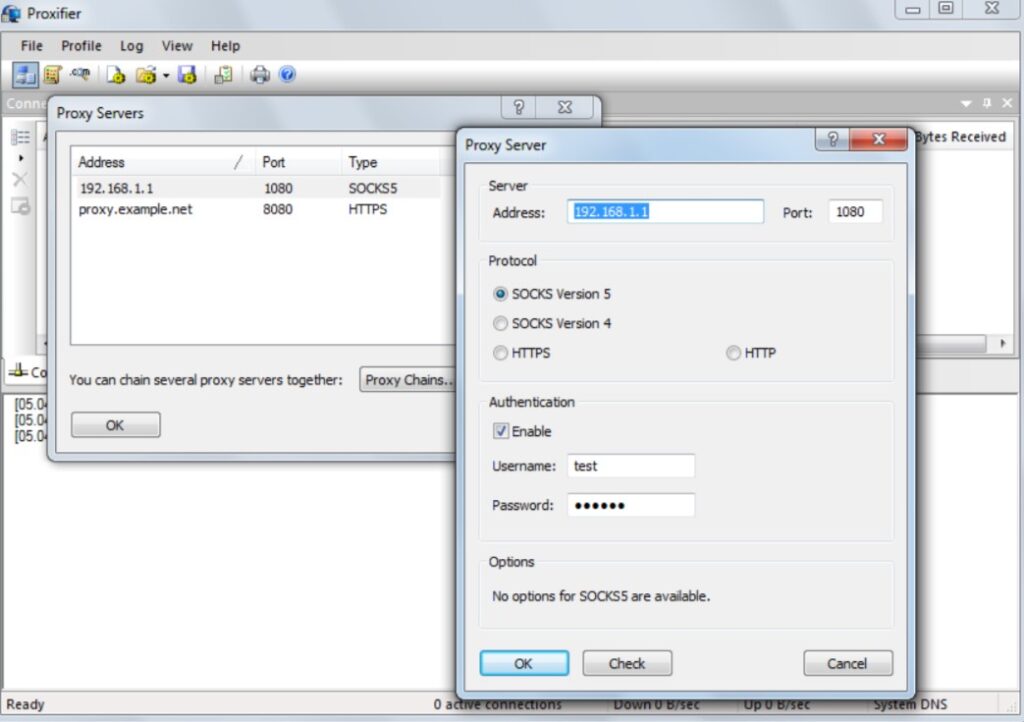
To use the Proxifier tool alongside a SOCKS5 proxy, you must first download and set up the software. Then, include a fresh proxy through Profile > Proxy Servers. Enter your Proxy IP and SOCKS port details, selecting SOCKS Version 5.
Why is my Proxifier not working?
If the Proxifier is not functioning correctly with an HTTP proxy that works within a browser, it could be because of SSL support problems. You can check if the proxy is working properly by using the integrated Proxy Checker tool.
How to do the “silent” installation on Windows?
For setting up numerous machines or avoiding installation dialogs, you may also the silent installation choices. Execute the setup with /SILENT or /VERYSILENT command line parameters to install Proxifier without any interaction from users.