How to Use Piskel Art Tool?

What Is Piskel Art Software?
Piskel is a very powerful but simple tool designed to create pixel art and animated sprites. It’s both a desktop and web-based application. It means the Piskel art tool is accessible to any person online or offline. Be it for an aspiring game developer or an amateur artist wanting to try his hands on pixel-based designs, Piskel has tools that get your ideas going.
The Piskel art tool is unique in its commitment to pixel art – this style the majority of people associate with old-school video games. The interface of the official website is intuitive and clean, allowing a beginning user to dive right in without feeling overwhelmed. Meanwhile, more advanced users will be able to enjoy much more complex features such as onion skinning and layer management.
Piskel is open-source and free, immediately making it popular with those seeking professional-grade features without a price tag attached. It’s quite well-liked in the indie game development community, especially in 2D projects. Maybe it doesn’t have the fancy tools featured in more high-end graphics software. But it does its intended job-make the process of creating pixel art as smooth and painless as possible.

With retro gaming more popular than ever, Piskel has a leg up on the nostalgia game while providing a modern, efficient solution to create pixel-based art. No matter if you are going to create vibrant, animated sprites for your next game or an artistic project, Piskel could be that perfect starting point. And unlike AI image generators, this tool allows you to work manually without any restrictions or limits.
Main Features of Piskel
Piskel comes with a number of features to make the creation process of pixel art smooth and available. Its interface is neat and built in such a way that it helps an artist get as little disturbance as possible to focus on the task at hand. The feature of frame-by-frame animation is included. It is an important element if you intend to develop 2D animated sprites.
Among the exciting features of Piskel is the onion-skinning tool that lets users view several frames in view while working. This functionality enhances continuity – an absolute necessity for smooth animation.
Also, the layer management tool lets different aspects of the artwork be worked on separately, which can become very useful when one has to make complex designs or animations where many elements are required to interact seamlessly.
Piskel also offers the possibility of a custom color palette, where users are free to choose color preferences for their projects. Whether you want it to be retro or modern Piskel ideas, having the ability to create and manage your own color palettes lends a professional approach to any artwork.

Additionally, you can export in a range of formats such as GIFs, PNGs, and sprite sheets, easily implementable into game engines or whatever software you are using. That alone pretty much makes it so that no matter what project you’re working on, Piskel has the export options to fit your needs.
Summing up, here is what you can do with the Piskel art platform:
- Neat interface;
- Frame-by-frame Piskel animation tools;
- Onions-skinning tool;
- Layer management tool;
- Custom color palette;
- Export saved projects in different file formats;
Major Tools You Can Use
Piskel equips one with a set of efficient tools that render working with pixel art quite effortless. Thanks to these tools, you can do Piskel sprite projects or simple animations. Check the following video with the basic tools of Piskel.
- Pen Tool. The central axis of the whole software is the Pen Tool, which enables you to place single pixels on the canvas. It has a size adjustment from 1 to 16 pixels for giving varied levels of precision in your work. This forms the bread and butter for any person working in pixel art, allowing one to create detailed, pixel-perfect creations.
- Eraser Tool. Complementary to the pen, the Eraser Tool lets you efficiently remove mistakes. Similar to operating like a pen but in reverse, it clears unwanted pixels with equal finesse. You can adjust the size of the eraser for handling both large-scale corrections and fine-tuning;
- Paint Bucket Tool. Piskel also has a Paint Bucket Tool in Piskel, which is great for coloring huge parts of your artwork in just one color. That saves time when you work on backgrounds or huge shapes, and it works nicely with the precision you have given by the pen tool;
- Rectangle and Circle Selection Tools. Slightly more complex selections are allowed for in Piskel with Rectangle and Circle Selection Tools. These tools allow you to concentrate on one part of your artwork at one time, with the benefit of not accidentally affecting other parts of it;
- Lasso Selection Tool. It will let you freely create irregularly shaped selections to edit trickier parts of your designs more easily;
- Vertical Mirror Pen. This pen mirrors your stroke on either side of the canvas, ideal for making symmetrical designs meant for characters or objects that need balance;
- Stroke Tool. It can assist in drawing straight lines with adjustable thickness;
- Dithering Tool. It can create patterns that can simulate gradient and depth or texture in artworks;
- Color Picker. It will let you pick colors by their hex code or RGB value and maintain a custom color palette to keep consistency throughout your project;
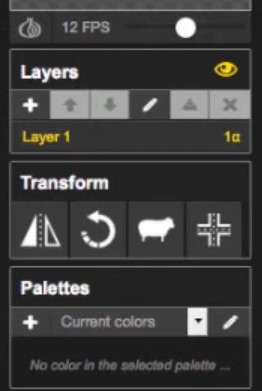
- Layer Management Tool. Perhaps the strongest aspect for animators in Piskel is Layer Management. Layers will make it possible to separate different parts of your design. It helps to create more complex animations while fully controlling the process;

As you can see, Piskel is a multi-purpose tool ranging from simple pixel art to complex animated sprites. Whether you are new to pixel art or a seasoned expert in the skill, these tools will give you all the flexibility you need for complicated and easy Piskel art ideas. You can see what people do with this online/offline editor on their dedicated Reddit thread.
What Is Piskel Live Preview?
The Live Preview function will give feedback in real-time as one creates and edits his or her artwork or animations. For animators, this is a great asset because it allows them to instantly see how changes affect the entire animation without exporting or reloading files.
It embeds the live preview window right in the workspace. Therefore, with every new frame added or individual pixels being tweaked, you get a view of how everything falls into place in real-time. This option saves time and streamlines the workflow because you won’t have to guess your way through it. Instead, you will have a clear picture of how your final animation will look.

For artists who do pure static pixel art, the live preview isn’t different to use. Zoom in to work on the fine details, zoom out, and see the overall composition at will. That’s how you make sure your art looks just as good when scaled down, something pretty important regarding pixel art, where individual pixels can make or break the look of a design.
The Live Preview feature can boost your creativity by giving you ongoing feedback right away-that means you can make changes right away, ending up with a better output.
How to Use Piskel to Create Art and Animations?
Creating pixel art and animations in Piskel is really easy, if not intuitive:
- Open the application from online or offline, click Create Sprite;
- You will see the Editor with all the essential tools shown on the left-hand side of the screen;
- To start drawing, click the Pen Tool, where you can place pixels one by one. You can change the size of the pen according to your preference for the pixelated resolution;
- If you are animating, add more frames in the bottom frame editor. Piskel has the onion-skinning tool, meaning the previous and next frames will show up transparently. You can easily make smooth transitions between frames;
- When you are happy with your creation, it is time to export. If you need to export animated files, they can be saved as a GIF. If it is a static image, it can be saved as a PNG. If you happen to work on a game, the export option is also available as a Piskel sprite sheet;
We recommend checking the following video on YouTube where the user explains how to implement Piskel art ideas into life.

Frequently Asked Questions
Is Piskel safe to use?
Yes. It is totally safe to use if you are a graphic designer or animator. This platform is open-source, doesn’t contain any hidden malware, and saved project files are free from viruses.
Is Piskel free to use?
Yes, Piskel is fully free and open-source, which makes it very approachable for beginners, hobbyists, and indie game developers alike. The software can be either used online in the browser or downloaded for offline use.

Does it work without an Internet connection?
Yes, the Piskel art software has an offline version available for download on Windows, Mac, and Linux. You will be able to work with it without an Internet connection, which might be pretty convenient in some places that have unstable access or when traveling. The only thing is that the offline one includes most options and instruments of the web application but lacks options for cloud-saving, relying on local file management for saving your work.
How to export your artwork in Piskel?
Exporting artwork in Piskel is easy and pretty straightforward. You can export your creations in one of many ways, such as in the form of an animated GIF, PNG, or sprite sheet, depending on the requirements. To do so, you need to click the “Export” button in the editor. If your work is made up of more frames, you will be able to export either an animation or a single image. Changes in resolution and format are also available according to different projects. Exporting the file format from Piskel to PNG is very easy.

Can you Piskel on mobile phones?
Currently, Piskel does not have a dedicated app for iOS or Android. However, it can still be accessed through the use of mobile web browsers. While this is convenient, the experience is less than ideal, as the interface was designed for use on a desktop. On smaller screens, tools and controls might feel a bit cramped. Many users have mentioned that it does work on tablets with a browser, but creating pixel art with controls by touch is usually a pain.
How to undo in Piskel editor?
Undoing an action in Piskel is relatively easy and intuitive. Instead of a dedicated Piskel undo button, this software uses standard keyboard shortcuts for making corrections quickly and efficiently. For undoing something, you can use Ctrl+Z for Windows and for Mac users: Cmd+Z. For redoing an action that has been undone: Ctrl+Y or for Mac users, Cmd+Y.
Conclusion
Piskel is probably the most versatile and easiest software used for creating animations and pixel art. Being free, and open-source, but also with some advanced features included like onion skinning, layer management, and different export options, it becomes perfect for independent game developers and beginners alike. No matter if you use this software online or offline, Piskel makes the creation of pixel art easier and more enjoyable for all creative levels.