How to Use and Uninstall McAfee WebAdvisor Extension?

What Is McAfee WebAdvisor?
The McAfee WebAdvisor is basically a browser add-on (mostly it is a widespread Chrome extension in 2024) that blocks users from browsing dangerous websites, getting involved in phishing activities, and preventing other web-related threats. For example, it can provide safety ratings for the majority of websites in real-time. In such a way, the users are getting warned about possibly risky sites before they go to them. The corresponding McAfee WebAdvisor extension can be installed on Chrome, Firefox, and Edge browsers to provide users with an additional protection layer while searching on the Internet.
According to some users on Reddit, McAfee® WebAdvisor can be a quite useful extension, so many customers are annoyed by its aggressive marketing policy and almost invisible installation process by default on PCs. The extension works silently, giving reports and warnings when users find potentially dangerous websites.

The safety ratings provided by WebAdvisor in different colors are simple and clear to comprehend. In such a way, users can evaluate a website’s security before they click on it. The add-on works really well with browsers and doesn’t have much effect on the performance when you are browsing.
Is WebAdvisor by McAfee a Virus?
To cut a long story short, the McAfee WebAdvisor extension is not malware. It is a useful tool for protecting users from internet risks. With the power of its big database that has lots of threat knowledge, the extension can find and stop bad websites in real time. It gives users quick alerts about doubtful sites, phishing tries, and other dangers, helping to lower the chances of getting hit by cyberattacks.

The proactive nature of the WebAdvisor McAfee add-on contributes to a safer online experience for users. However, you may want to consider learning how to remove the McAfee WebAdvisor tool from your PC because of its aggressive manner of stealth installation.
McAfee WebAdvisor: Key Features
The WebAdvisor tool functions to improve safety on the internet with a mixture of abilities. One main thing it does is scan websites while you search and display color-coded safety ratings beside the results, showing if a site is safe (green), risky (yellow), or potentially dangerous (red). Many users claim the extension can be quite useful and even tested its effectiveness – for example, check the YouTube video.
Such a labeling system actually helps users decide which websites they should visit carefully. The properly used McAfee WebAdvisor can stop harmful downloads, warn people about phishing attacks, and provide safe search options.
This tool is mainly focused on individual users, so it fits well for the requirements of most:
- Internet consumers;
- Home users with families or shared living spaces like apartments or dormitories;
- Small business owners managing company-owned computers;
- Freelancers working from home;
- Students who are using internet resources to do the tasks;

The major features of McAfee WebAdvisor include:
- It is specifically designed to protect your privacy, identity, and personal devices. Its goal is to keep you safe from different dangers when surfing the Internet;
- The Misclick Protection. When users mistakenly click on a harmful link, this feature stops malware and phishing sites from loading;
- Typo Protection keeps users safe when they mistakenly type a wrong web address, guiding them toward the correct destination;
- McAfee WebAdvisor scans downloads and alerts users if it finds a risk;
- The Security Inspection option checks if the user’s firewall and antivirus are turned on before surfing;
- Safe Browsing provides a color-coded labeling method for telling users which links they can click without danger;
The McAfee WebAdvisor Chrome extension can protect your device, providing an antivirus function that keeps away malware, adware, spyware, and viruses. It includes web protection too. In such a way, it stops access to “bad” websites and helps to keep you safe from any phishing tricks.
If you need to protect not just your web experience, but also boost the PC performance and get rid of nasty malware, consider using another effective tool – Cloud System Booster!
The System Requirements of McAfee WebAdvisor
You can install this extension on browsers and PCs supporting Windows 11 (64-bit), 10 & 8.1 (32- and 64-bit), and Windows 8.0 & 7 (limited support) operating systems. Also, the tool works well with Internet Explorer version at least 10.0 or later, and Microsoft Edge for just Windows (though, the Fall Creators Update is needed. Additionally, it works fine with Firefox as well as Google Chrome but not on Mac OS.
Is McAfee WebAdvisor Free?
The WebAdvisor tool provides users with various free tools and downloads to supplement their online security. You can try McAfee WebAdvisor for Chrome free before purchasing the more advanced package called Total Protection, which allows you to understand its features more deeply. It also includes the device security’s scan function that helps in finding weak points and possible risks on the PC. Also, the premium package may include the password generator tool for making strong and safe passwords easily.

McAfee WebAdvisor is a complete web protection solution that provides different elements to keep users’ privacy, identity, and personal devices safe. It focuses mainly on individual users and households. This makes it fitting for general consumers, home users, small business owners, or workers who are freelancers as well as students.
How to Download and Install McAfee WebAdvisor?
You can directly install the McAfee WebAdvisor Chrome, Firefox, Edge, and Opera add-ons from the official website following the guidelines given by the developer. To download the package offline, also use the official sources.
What Is The Difference Between McAfee WebAdvisor And McAfee Total Protection?
WebAdvisor and Total Protection packages are not the same thing.
The main function of McAfee WebAdvisor is to protect devices by acting as an antivirus tool. It helps in defending against different kinds of harmful software like malware, adware, spyware, and viruses. Additionally, it also provides web protection to prevent visiting websites and prevent users from getting tricked by phishing schemes. You can get the McAfee WebAdvisor extension free on Windows and macOS systems.
McAfee Total Protection is a full security suite that covers either 5 devices or unlimited ones, offering features such as a firewall you can customize, tools to tune up your system, a network scanner, and parental controls. It also has a VPN with no limit on data usage, a password manager called True Key for managing passwords easily (you don’t need to remember them all) plus services like checking for identity theft – they even provide a guarantee of returning money within 30 days if you are not satisfied.
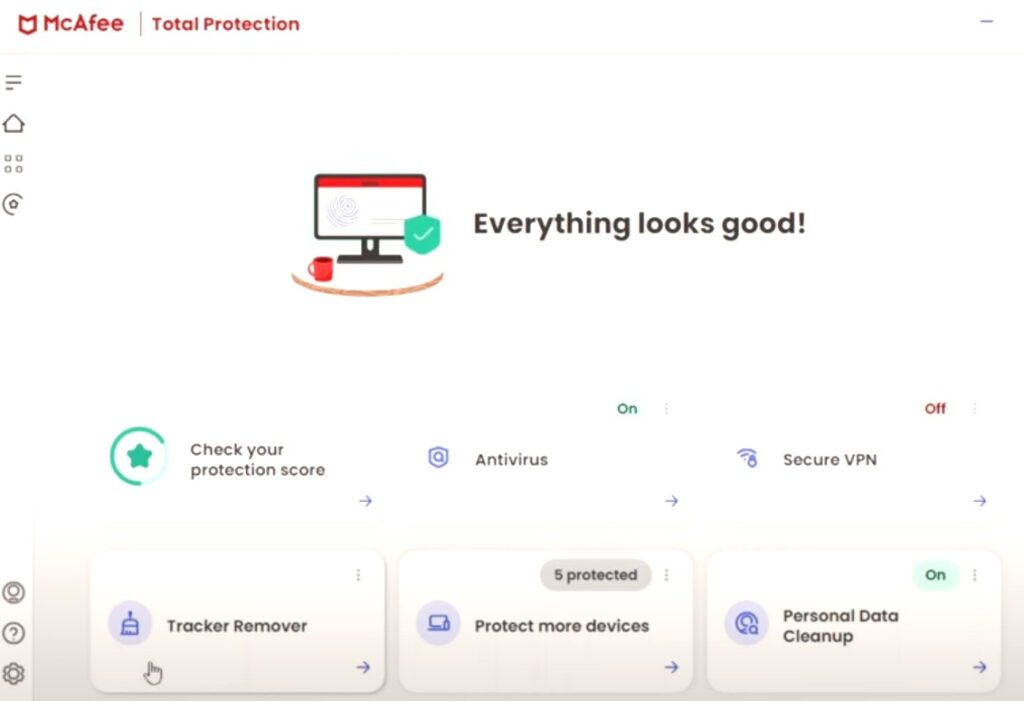
Summing up, WebAdvisor is used only for the web and device safety, but McAfee Total Protection has more features like protection from firewalls, tools to make your system better, controls for parents, and watching out for theft of identity. Total Protection is a better solution if you are looking for an all-inclusive security suite, while WebAdvisor is a specialized tool focusing on web protection and device security.
How to Disable McAfee WebAdvisor: Different Methods
Since the tool is infamous for its stealth installation along with some third-party software packages, many users want to know how to turn off McAfee WebAdvisor or completely remove the tool efficiently. There are a few tactics at this point:
1) Uninstall McAfee WebAdvisor via Windows Settings:
- Go to Settings > Apps > Installed apps;
- Locate McAfee WebAdvisor, click on the three-dot menu, and select Uninstall;
- Follow the prompted instructions to remove the application;
2) Use the McAfee WebAdvisor Uninstall Tool:
- Go to the default location of the uninstaller at C:\Program Files\McAfee\WebAdvisor;
- Double-click on the uninstaller executable and follow the on-screen instructions to uninstall McAfee WebAdvisor;

Additionally, you may use the third-party Revo Uninstaller Pro to completely remove McAfee WebAdvisor. Make sure you remove all remaining files related to the WebAdvisor after taking out the application to finish the deletion process.
Try these methods if you need to know how to get rid of McAfee WebAdvisor from your PC for good.
Top 3 Alternatives to McAfee WebAdvisor:
This is a free Internet security addon available for different browsers. It rates the trustworthiness, respect of user privacy, reliability, and child safety factors of websites by using user ratings. WOT Web of Trust is the top most popular Web-based and Android alternative to McAfee SiteAdvisor, as well as being the most popular free alternative.
It’s a browser extension that stops and checks all web traffic before it reaches the browser, preventing disguised or stealth attacks from succeeding. This tool is compatible with almost any browser, maintaining the same appearance, sensation, and functionality even if you change browsers.
This is a no-cost browser addition for Chrome and Firefox that prevents entry to infected websites, secures your privacy, and assists in locating the top deals nearby when shopping.
What is WebAdvisor by McAfee: Frequently Asked Questions
- Is McAfee WebAdvisor safe?
This is a product that you can safely use, and it is not a virus. You may set up WebAdvisor either as an independent application or incorporate it into the McAfee Windows security item.
- How to uninstall McAfee WebAdvisor using Control Panel or Settings?
You may remove the McAfee WebAdvisor application that you have installed, like any other software by using Control Panel or Settings. If it is installed together with other McAfee security applications, you can also uninstall it individually.
- How to use the McAfee WebAdvisor uninstaller?
The uninstaller is usually located at C:\Program Files\McAfee\WebAdvisor. You need to click twice on the executable named uninstaller and then just follow the given instructions for removing this program.

- How to remove McAfee WebAdvisor from Windows 11/10?
A: If you want to take off McAfee WebAdvisor from Windows 11/10, you can remove it by accessing Settings > Apps > Installed apps and then eliminate all remaining files related to it with the help of File Explorer. Also, a different option is using software that takes out third-party programs to get rid of the WebAdvisor completely.
Conclusion
McAfee WebAdvisor is a trustworthy and efficient tool for boosting online safety. It offers multiple features, smooth operation, good user experience, and important value proposal. Besides, McAfee WebAdvisor is an asset in the field of cybersecurity because it helps users make careful choices, stops bad content, and gives protection instantly. This makes a better and safer internet space for every person who uses it.