How to Stress Test GPU On Windows?

How to Stress Test GPU At Home?
A Graphics Processing Unit a.k.a. GPU is a special electronic circuit that does parallel processing in many different applications. Bust mostly it is mostly used for making graphics. It works on the graphics information like shades, texture, color, and more to ensure sure smooth rendering of images or videos with good quality. The following guide focuses on the instructions and tips about how to stress test GPU safely.
Why Do You Require to Perform a Stress Test for GPU?
Stress testing for a GPU means you are making your graphics card work as hard as it can without any stability issues. This process requires pushing the GPU to its limit and confirming that it can handle high workloads without crashing or getting too hot.
It is not like normal usage or gaming, because it tries to go very far with the GPU and possibly make it crash or get too hot. This helps in checking how stable and good the performance of GPU is when put into severe situations.
Learning how to stress test a GPU is important because of such reasons:
- Assessing overclocking limits to find out the top clock speeds and voltages;
- Stability for high-end gaming and professional work;
- Identifying potential hardware issues like bad memory or not enough cooling;
- Benchmarking and performance comparison of different devices with various GPU setups;
- Assessment of thermal performance to maintain GPU at safe temperatures;
How to Stress Test GPU Safely?
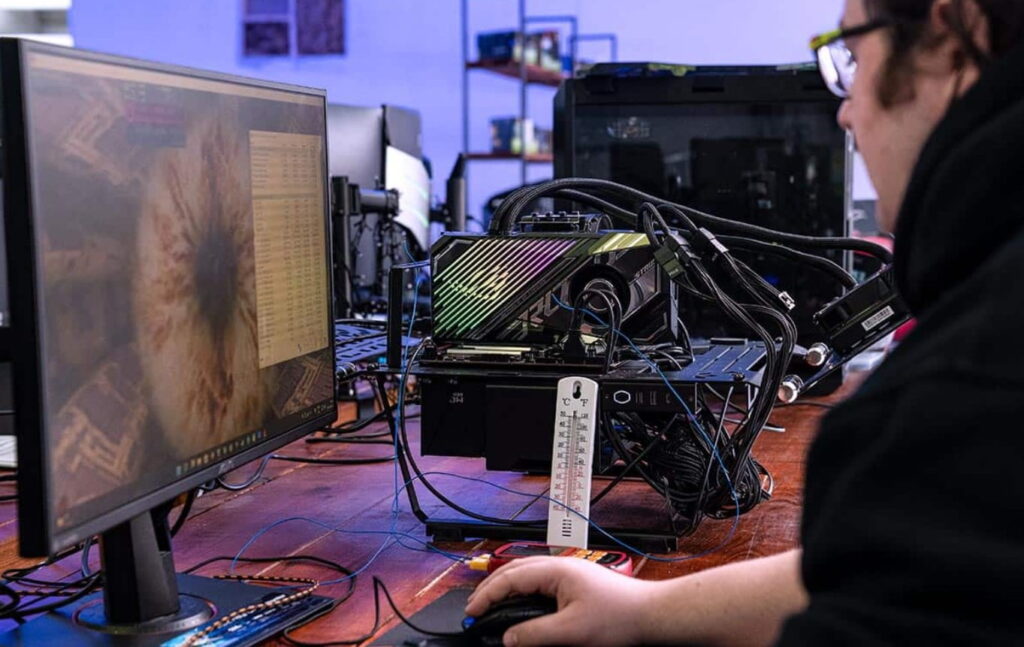
Nowadays, modern GPUs have protections included in them that work to reduce performance or entirely stop the system when it reaches crucial limits. This confirms the safety of GPUs with good cooling solutions.
Stress testing can expose failures that might happen because of overclocking or existing errors. It is usually secure if you comprehend the variables at play. When you do too much overclocking, it makes the temperatures of the GPU go up. In addition, if you are not controlled properly could lead to instability or damage to components.
When playing games, try to keep the GPU temperature between 65 and 85°C. Sometimes it might go up to 90°C while doing stress testing but anything above this range indicates the overheating and might require adjustments.
CPU and GPU Stress Testing – Major Features
Before grasping how to stress test GPU, you must understand that not every stress testing utility will do for GPU. Some software utilities can do both GPU and CPU stress test at equally top-notch levels. While the others do not offer such options.
- Different Tools:
- CPU stress testing tools are Prime95, Aida64, Intel BurnTest;
- GPU stress testing tools are FurMark, Superposition, 3DMark;

- Component-Specific Testing:
- CPU Stress Tests concentrate on how well the CPU handles intense computational jobs. The goal is to check if the central processing unit remains steady when it works at its highest capacity, specifically during demanding applications;
- GPU Stress Tests focus on the graphics card, evaluating how well it manages tasks related to gaming, rendering, and intricate graphical calculations;
- Heat Generation and Cooling
- Cooling Systems. Good cooling is very important. Make sure that your system has enough air flow and effective ways to cool down, so it does not get too hot;
- Temperature Monitoring. Apply devices for temperature tracking to prevent possible harm during tests;
- Overclocking Considerations:
- Overclocking. This is when you raise the clock speeds and voltages of your CPU or GPU to improve how well it performs;
- Stability Testing. Stress tests for GPU are done to make certain the overclocked settings remain stable, and components manage extra load without becoming unstable or too hot;
- Monitoring Tools and Metrics:
- These monitoring tools are MSI Afterburner, HWMonitor, GPU-Z;
- Monitor temperatures, clock speeds, utilization, and other performance metrics to study how components behave when the tests are done;

- Stability and Performance of the System:
- Look for crashes, freezes, or system instability during tests;
- Understand your components’ performance, improve settings, and find hardware problems;
The Best Software to Learn How to Stress Test GPU on Windows
According to the Reddit tips shared by faithful fans, we have gathered the top 3 Windows utilities and software you can use to stress test GPU on PCs safely:
FurMark
FurMark is an OpenGL benchmark utility that can push your GPU to heat up beyond the levels that are recommended so you need to be careful. There are preset benchmarks with it and also options for setting custom resolution as well as anti-aliasing. FurMark is popular for such free features as extreme testing, and customizable presets. Many users find this software as the best free GPU stress test for Windows users.
3DMark
3DMark benchmarks and stress tests graphical processing units (GPUs), central processing units (CPUs), and storage devices using visually impressive graphic elements. Basic Edition provides three benchmarks, while Advanced Edition has “Stress Test GPU” mode and extra characteristics such as ray tracing. The program offers the features of DirectX 11/12 support, configurable benchmarks, and ray tracing in real-time. You can download 3DMark for free. Also, there is a premium version starting at $ 35.
OCCT
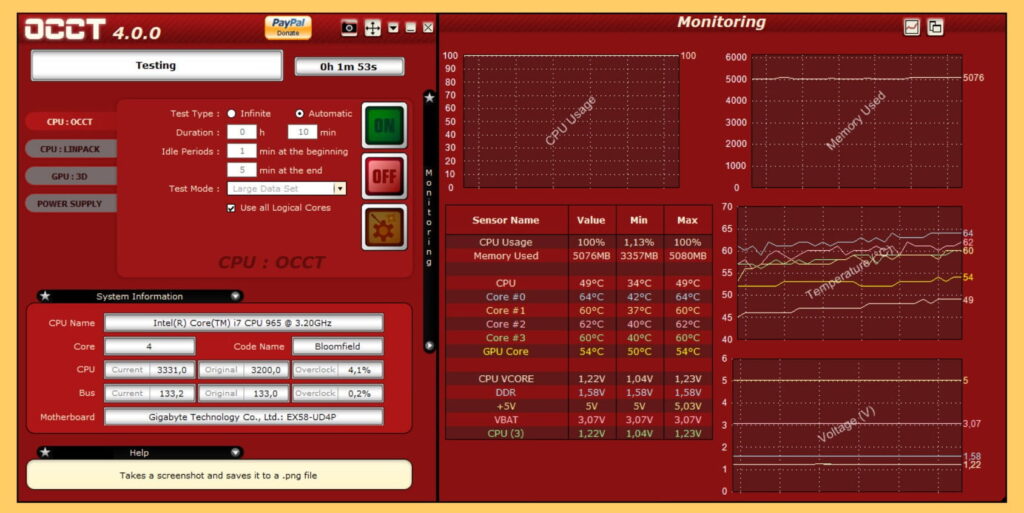
OCCT helps in finding stability problems with setups that are overclocked or undervolted. You can set the time and memory used for testing, and there are safety limits too – these stop tests from going on when temperatures become very high. The main features are configurable security settings, error detection, and comprehensive component testing.
How to Stress Test GPU If You Are A Beginner?
We recommend performing the first test of your PC with less demanding software in terms of UI/UX. For example, the best GPU stress test for beginners is the Superposition tool. It is available free for any Windows OS based PC.
Those who are into overclocking require a dependable benchmark that can confirm if their GPUs can manage increased clock speeds without experiencing crashes.
This is how to stress test a GPU with Superposition: 1) Download and Install Superposition:
- Download Superposition from Unigine’s website;
- Initiate the setup wizard to install the application on your system;
2) Setting Up the Benchmark:
- To begin, use the 1080p High preset as your initial point of reference. You can later explore with superior resolutions;
- Click the button saying Run and let Superposition do its job. To get accurate results, confirm that other applications are not active in the background as they can influence data or cause crashes;
3) Analyze the Results:
- Once the test finishes, check the performance data. Pay attention to important measurements such as GPU usage, temperature, and framerate;
- Press the Save button to keep the benchmark results on your device. This way, you can examine how they compare with data from other tests later on;
4) Troubleshoot Issues
If you observe crashes, artifacts, or stuttering while testing, this may indicate that your GPU is not stable. Such problems might be caused by an aggressive overclock, high temperatures, or failing parts. Execute the benchmark multiple times to check if problems happen consistently. If you still observe the GPU issues every time, then it is high time to change the hardware.
How to Stress Test GPU and Make Sense of the Results
You must concentrate on:
- GPU usage. Confirm that your GPU is being utilized at 100% or nearly during the test;
- Temperature. Monitor temperatures to ensure they stay within safe limits (typically below 85°C);
- Framerate. Consistent and high framerates indicate stable performance;
If any of these metrics of any top GPU stress test tool appear irregular, it could signify problems with your GPU. You may want to review the overclock settings, enhance cooling conditions for your system unit, or update drivers.
Stress Test for GPU – Frequently Asked Questions
Is there the default Nvidia GPU stress test?
Certainly, Nvidia does offer a GPU Stress Test tool meant for their Tesla GPUs. This tool can be found on GitHub and it puts strain on the compute engine by doing a BLAS matrix multiply using different data types. You can compile and run it on Linux as well as Windows platforms.
How long should I stress test my GPU?
The expected duration for a standard GPU stress test is around 20 minutes. This holds particularly if you use the default setting of 20 loops.

Is the GPU stress test by Nvidia effective?
The basic GPU stress test that NVIDIA gives is good at checking the stability and performance of NVIDIA GPUs. It performs different kernels to imitate worst-case situations, measuring with oscilloscopes and aligning GPU work to put pressure on the power supply. This test can recognize unrecoverable memory errors, temperature violations, and XIDs. Yet, for overclocking or assessing the highest stable overclock of a GPU. To stress-test the graphics card with these tasks, use the free tools like FurMark and Superposition.
How can I check if my GPU is bad?
To test if your GPU is not working, make sure to turn off the computer and take out the GPU. Look at it closely for any noticeable harm such as breaks, burns, or swellings. Use a can of compressed air to blow away dust or dirt from the GPU and its fan. If the GPU has physical damage or it is getting too hot, these are usual signs of the GPU failure.
If you see no visible harm on the outside of your graphics card but are still experiencing problems with its performance, this could point out at the internal faults within the device itself or possibly software-related issues.
How to perform a GPU diagnostic test?
To diagnose your GPU you can use the Task Manager in Windows:
- Press Ctrl+Alt+Del and open the Task Manager;
- Go to the Performance tab;
- Click on the GPU section to view its status;
- Monitor the GPU Temperature and Utilization tabs for any irregularities;
- Look at the GPU section’s bottom to find your Driver version, Driver date and DirectX Version;
How can I stress test my GPU most safely?
For secure stress testing of your GPU, use the special software for stress testing on Windows – FurMark. You should set the best stress test for GPU after launching the FurMark (GL) program. Your task is to match the resolution with that of your monitor’s native setting and activate Display OSI. Then keep an eye on metrics during stress testing.
Begin the test and allow it to continue for at least 10 minutes, paying close attention to GPU temperature and usage fluctuations. This approach lets you safely stress test your GPU at full capacity without any harm.
Do I need to stop FurMark on my own?
FurMark is made to be a powerful stress test for GPU, not a benchmark. This means it’s created to push your GPU very hard so you can find the weak points in its performance. When FurMark runs on your computer, there’s a chance that your system could crash because of how much load it takes up. Generally, this crash does not result in any lasting harm or damage. That is why keep a close eye on the test and halt it if the GPU temperature rises too much. You may read our review about using FurMark safely.

Conclusion
Knowing how to stress test GPU is essential if you want to use your PC hardware at maximum for work or entertainment purposes. Stress testing helps to confirm stability, performance, and reliability – this becomes even more crucial when dealing with heavy workloads such as gaming or rendering videos.