Elmedia Player Review – The Best Video Player for Mac
Elmedia Player Review on Mac – Overview
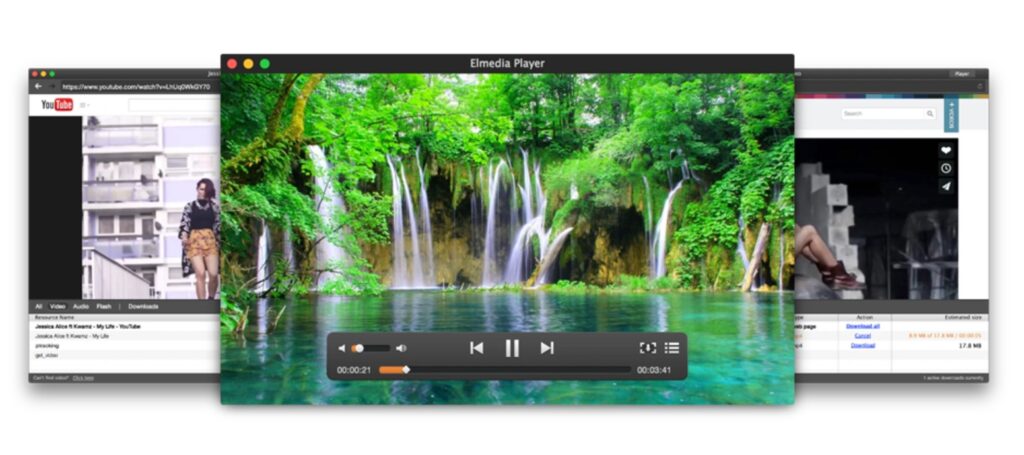
Elmedia Player is an all-in-one media player for Mac OS. Its best feature is the optimization for supporting almost any video or audio file type. It’s Objective-C, C++, and C-based software with seamless multimedia playback and a user-friendly interface. Currently, Elmedia Player is indisputably the best video player for Mac OS that supports many audio formats. We will prove this point in the following Elmedia Player review.
Main Features
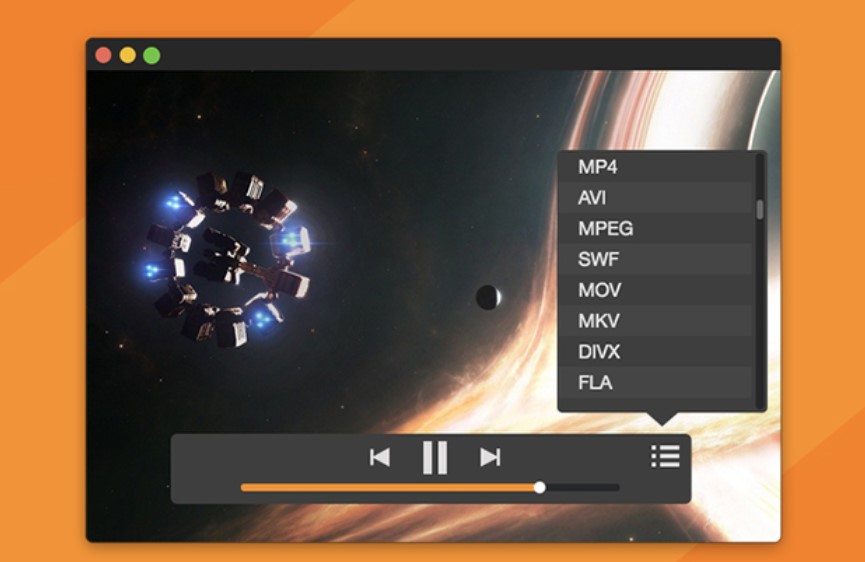
The main feature of this video player for Mac is its support for many video and audio formats. From FLV to MP4, AVI, MOV, MKV, MP3, Blu-ray, and more, Elmedia Player comes with support for 70+ formats without any plugins or converters. It is the right choice for Mac users who don’t want to install any extra plugins or codecs. Use just one app—Elmedia Player—to play any media on your Mac or compatible devices.

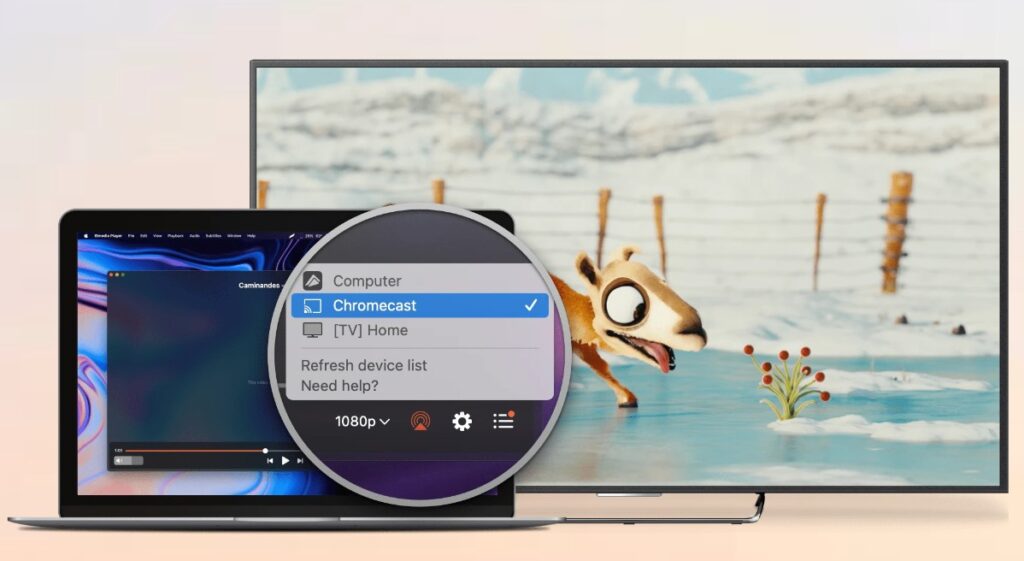
Another highlight is its advanced streaming option. Elmedia Player can stream local files to Chromecast, AirPlay, Roku, and any DLNA-compatible device. This app plays media at high resolutions, with 4K and 8K resolutions for AirPlay 2 and DLNA streaming. This feature is fantastic for Mac users who want to turn their Mac PCs into a full-fledged media center available on Smart TVs.
As for the interface, Elmedia is software with an integrated web browser. You can watch web content right within this app. Forget about bouncing from one app to another or website with video content — watch any ad-free online video through the Pro version. By the way, unlike the free basic version you get immediately after installing the player on Mac, the Pro version directly downloads YouTube videos, enhanced playback options, and many other options.
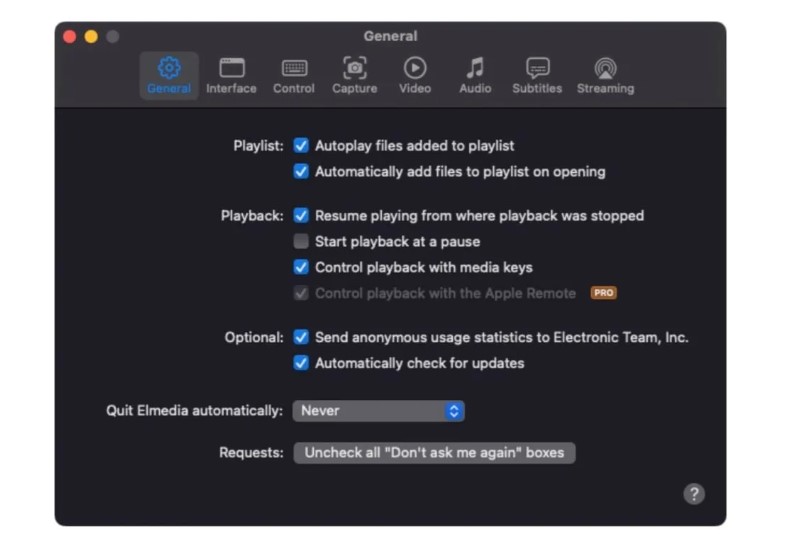
Elmedia Player is a must-have application for Mac enthusiasts who seek the best video and audio player to run multimedia without hassle or any extra tools.
Elmedia Player Review – Playback Options
In our Elmedia Player review of playback features, the first thing we want to praise is the app’s full optimization for M1-based Mac devices. The app won’t overload the CPU.
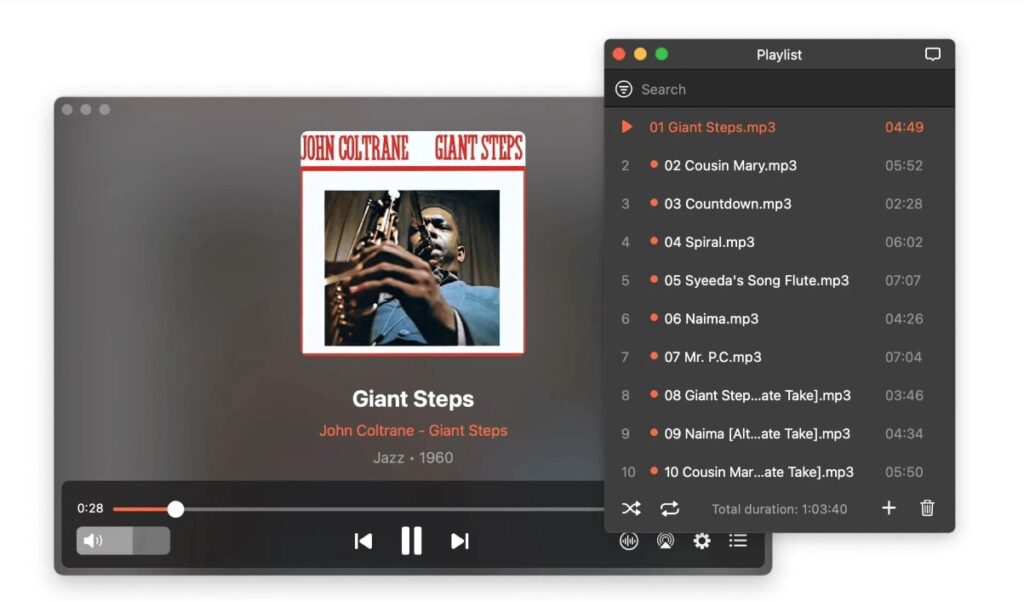
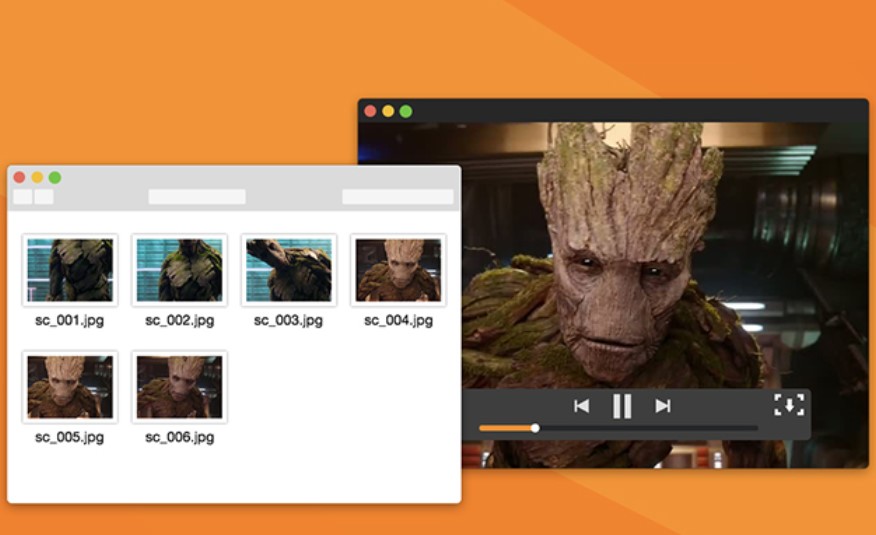
Users can also personalize their media playback settings. You can make playlists in the player and manage the entire video playback process (frame-by-frame shuffling, thumbnails, timeline previews, bookmarking, etc.).
We were also surprised during the preparation of this Elmedia Player review that this tool supports multiple monitors— you can switch between screens for the fullscreen viewing mode. Combined with macOS’ native fullscreen mode, this mode is very useful for fans of the home cinema experience.
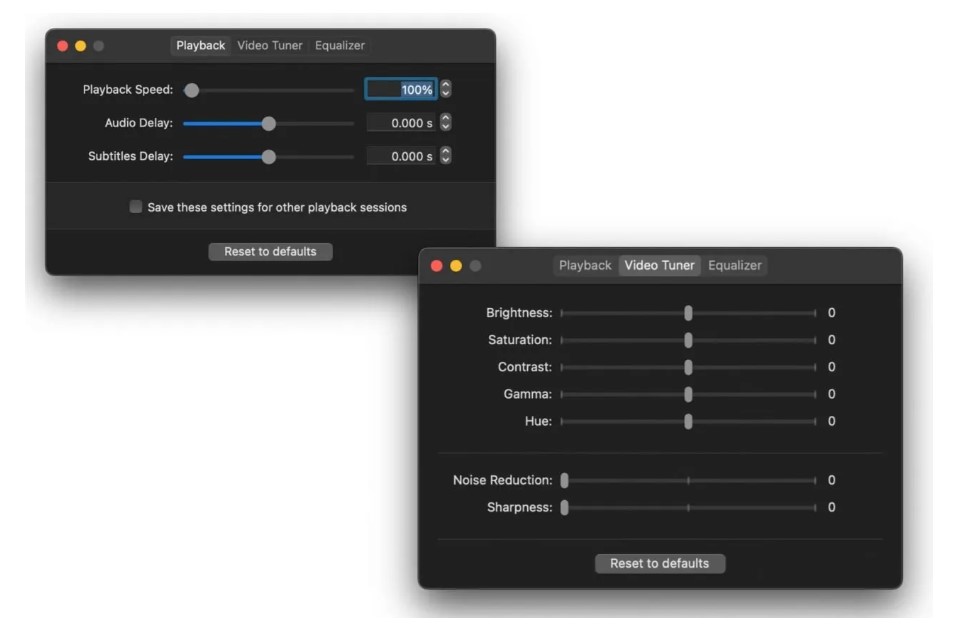
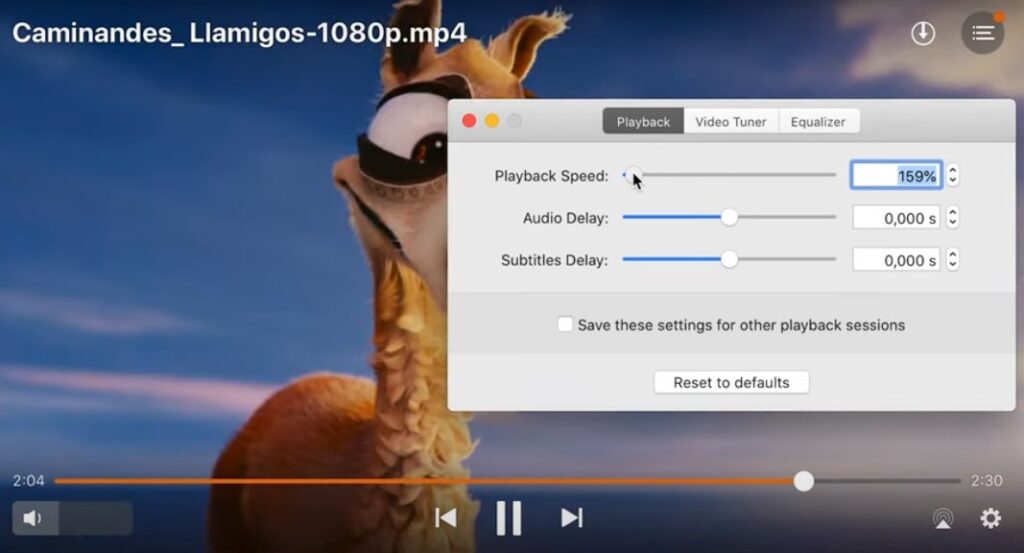
When it comes to visual tuning, you can adjust brightness, saturation, contrast, hue, gamma, sharpness, and noise reduction. And, you can create the perfect viewing environment for every video or audio played by Elmedia.
The looping and deinterlacing support enhances playback even further. You can loop video fragments indefinitely (an ideal method for looping single-file albums) or deinterlace low-quality videos to remove any quality inconsistencies—useful for discarded DVDs or analog tapes.
Elmedia Player offers the Picture-in-Picture mode, which allows you to watch videos in a tiny, scrollable window while multitasking or browsing on your Mac device.
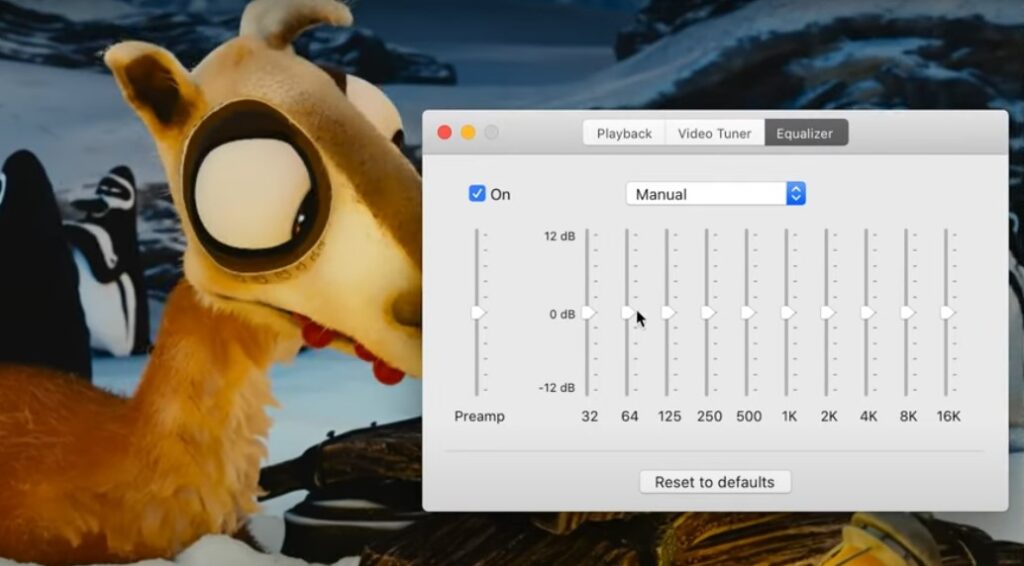
Sound customization is also impressive. Thanks to the 10-band audio equalizer and presets, you can tune up your audio files’ sound quality. The player even comes with external audio inputs, so you can play the same video in multiple languages or dubs. Elmedia also supports AC3/DTS pass-through over S/PDIF for surround systems. The in-built audio visualizer adds dynamic effects to music.
Elmedia Player respects users’ privacy—the Mac App Store’s security protocols prove this. The program doesn’t download any private information that users share with it.
Tasks You Can Do With Elmedia Player
Plays Any Video Files
Elmedia Player is the most flexible player that offers unprecedented media file support. You can play back video and audio in any popular format—FLV, SWF, XAP, WMV, RM, RV, AVI, MOV, MP4, etc. For example, if you want to use Elmedia as the best Mac FLAC player, you won’t need to install additional plugins. About 70 file formats are supported.
Download Audio and Video from YouTube
The Elmedia’s Pro version lets you extract videos directly from YouTube and download them to your Mac for offline viewing. Thanks to its built-in browser, you can insert YouTube’s video URL into a particular field and see all the media available for download from this page at the bottom of the app. You can easily download video and audio content without repeatedly logging in to your YouTube account because the app syncs with Safari.
Convenient Volume Control
You can control the video/audio volume in Elmedia Player without changing the whole Mac OS system’s volume. It is a nice feature that QuickTime lacks.
Taking Screenshots
The Pro versions offer a handy screenshot feature. With one click, you can take snapshots or a series of screenshots from a video. This is a great way to record/save the video’s highlights or share specific shots with your friends without stopping, pausing, and capturing the screen with the default screenshot tools on Mac OS.
Playlist Support
Anything you download with the help of Elmedia Player is automatically saved in a default playlist appearing when you launch the app. You can sort these files to prevent the search through folders when binge-watching a few videos or listening to a full album. Also, you can label the files as Favorites.
One-Click Streaming
Direct local streaming allows you to send any content from your Mac to your Apple TV, Smart TV, Chromecast, or DLNA-compatible device. You can view the local content in HD or even 4K on a larger screen. The player also transcodes the files to ensure compatibility with your target device.
Extended Subtitle Support
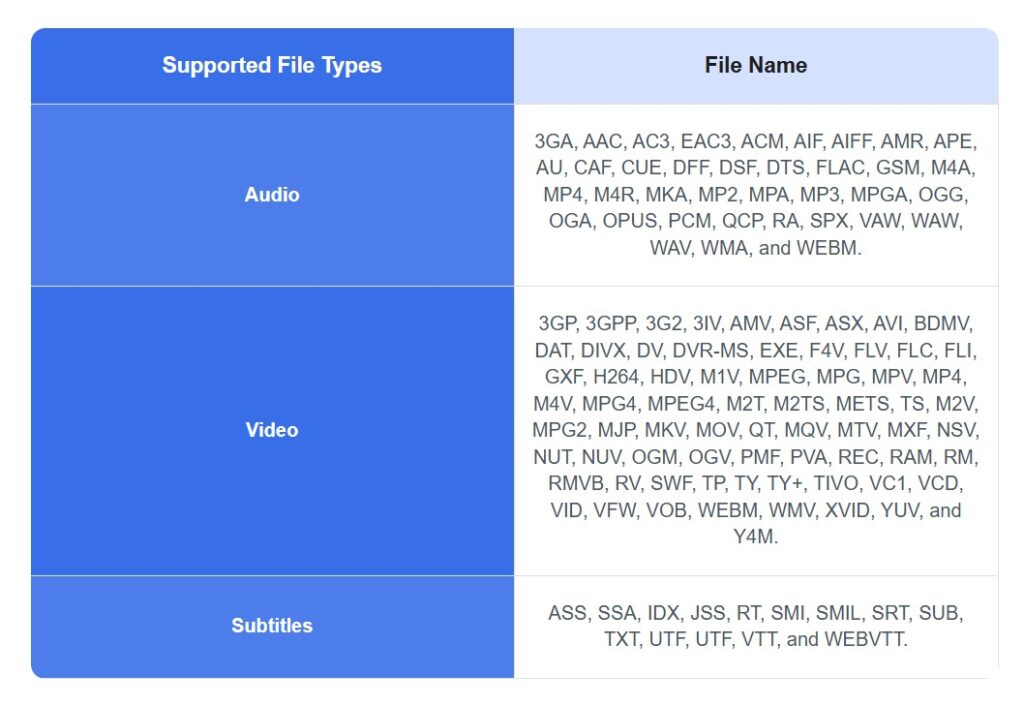
Elmedia is excellent at customizing local and online subtitles. The player app supports the subtitles in the SRT, ASS, or SMIL formats. Change their font, color, and position. The app is integrated with OpenSubtitles.com, so you can do the auto-subtitle search, download the subtitle file, and synch it with the video straight from the player.
In addition to the main features and playback options already mentioned, Elmedia Player includes many other smaller tweaks that you can try in the free and pro versions.
Supported Formats
1) Video Formats
Elmedia Player supports many different video formats, and you can stream just about any video format. The player also includes support for the most standard codecs, such as MPEG2, MPEG4, H.264/AVC, H.265/HEVC, and the newest H.266/VVC codec that appeared with the July 2023 update (plays 8K VVC). This is a unique code compatibility that is not available in most Mac video players.
As for the container support, Elmedia can play video files in rare Mac formats such as AVI, MKV, VOB, MP4, and WEBM. This extensive support means you can stream everything from high-definition MKV files to retro AVI movies. Elmedia is equally suitable for watching high-quality 4K home videos and compressed MP4 files downloaded online.
2) Audio Formats
The wonderful news is that Elmedia Player is more than a video player for Mac—you can also use this app for audio playback. It supports MP3, AAC, MP2, Monkey’s Audio, Vorbis, WAV, WMA, and many other audio file extensions and formats.
We know that it is a real challenge to find the best FLAC player on Mac. But Elmedia Player copes with this format, too. It doesn’t just play FLAC – it is the best FLAC player for a Mac audiophile because it improves your listening experience automatically. You can’t miss the Elmedia FLAC music player for Mac OS if you like listening to audio in the best possible quality. You can also create your playlists with the tracks in FLAC, MP3, WMA, and AC3 formats. There is a built-in volume control and 10-band equalizer to adjust each playlist track to your preference.
Elmedia Player Review – Pros and Cons
| PROS | CONS |
| Basic functions are free | Advanced features are paid |
| Beginner-friendly | Not available for Windows |
| Support of over 70 video and audio file formats | Sometimes, it lags when you resize the player’s window |
| Video resolution support up to 4K/8K | |
| Stream online on TV and Chromecast without ads (Pro version) | |
| Take unlimited screenshot (Pro version) | |
| Fix the sync bugs in audio tracks and subtitles | |
| Regular patches and optimization |
Elmedia Player Review – Cost and Plans
Our Elmedia video player review wouldn’t be complete without mentioning the limits covered behind paid features in a Pro version. It does fit different budgets, though.
The free version of Elmedia Player offers basic playback, so it’s a good option for anyone who wants to watch videos and do basic things with video/audio on a Mac. But the Pro version gets you an impressive package of advanced features, such as ad-free online streaming, video downloads from YouTube, audio/subtitle synchronization, etc.
There are three pricing models for the Pro version of Elmedia Player:
- A personal license costs $ 19.95;
- The family license package costs $ 39.95 for multiple devices in one household.
- The business package costs $ 29.95 per use for professional teams;
Differences Between Elmedia Player Free and Pro
Both the free and pro versions are well-optimized for Mac use. The difference is the array of options offered by each version.
Elmedia Player Free is very good for playing in multiple formats. It comes with subtitles, can create playlists, and has audio sync features.
On the other hand, the Elmedia Pro version boosts the free package with a few beneficial premium features like streaming to Chromecast, AirPlay, and DLNA-compatible devices. This means you can watch media on larger screens or TVs and monitors. Also, Pro users get the Picture-in-Picture mode, a handy multitasking mode, and a 10-band, user-selectable audio equalizer for better sound control. With these features, the Pro version becomes an all-in-one media solution for Mac OS.
Compare the options available in both versions.
| Feature | Free Version | Pro Version |
| Support of 70+ formats of audio/video | + | + |
| Built-in online search for subtitles | + | + |
| Pin the player window on top of other apps | + | + |
| Create playlists from the local and streamed online files | + | + |
| Subtitle support (edit, uploaded external files) | + | + |
| Multiple audio track support | + | + |
| Independent app’s volume control | + | + |
| Adjustment of aspect ratio | + | + |
| Adjustment of playback speed | + | + |
| Audio and subtitle sync options | + | + |
| On-screen display for playback (pause, rotate, etc.) | + | + |
| Stream local files to Chromecast devices | – | + (with 4K support) |
| Stream local files to DLNA-compatible devices (Smart TVs) | – | + |
| Stream local files to Apple TV and AirPlay 2 devices | – | + (with 4K support) |
| Audio/video streaming and AirPlay screen mirroring | – | + |
| Take screenshots from videos | – | + |
| Playback extra options (A-B loop, 10-band equalizer, video adjustments) | – | + |
| Picture-in-Picture mode | – | + |
| Save the subtitles straight from opensubtitles.com | – | + |
| Multiple monitor support for fullscreen playback | – | + |
How to Use Elmedia Player on Mac?
The following guide will show you how to download, install, and use Elmedia Player to play a video in the popular AVI format, which is not supported by the default media player on Mac.
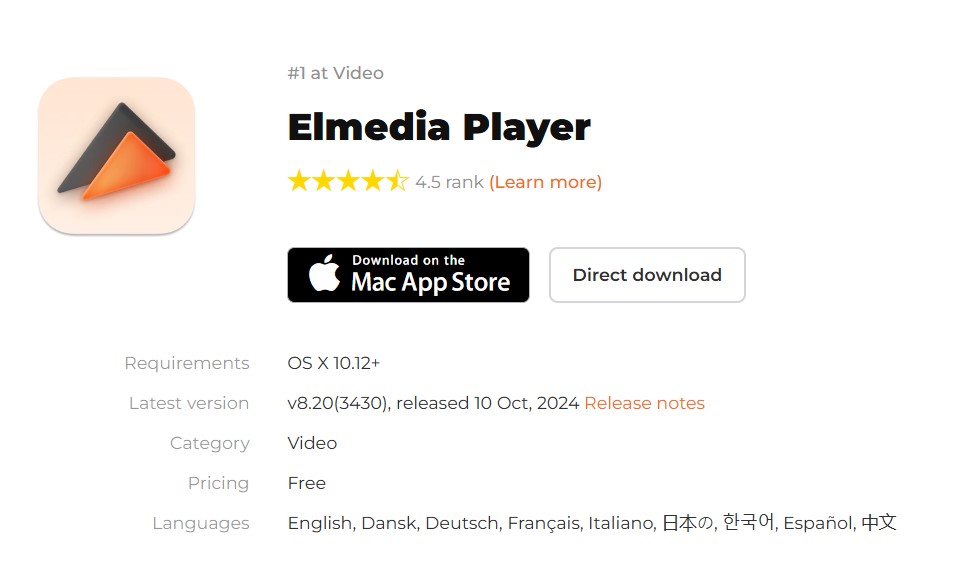
Downloading and Installing Elmedia Player on Your Mac
- First, you should download Elmedia Player from the official site (directly from the page “Download”) or the Mac App Store. Follow the instructions on the screen to download;
- After downloading, find the file in the upper right corner of your screen. Find the installation file in the .dmg format and drag the Elmedia Player icon to your Applications folder.
- Open Applications, find the Elmedia Player icon, and click on it. If a pop-up alerts you that the app’s source is from an unspecified developer, tap “Open”;
Setting Up Elmedia Player on Mac
While holding Ctrl, click on the Elmedia Player icon, choose Options, and check “Keep in Dock” to pin this app to your Dock.
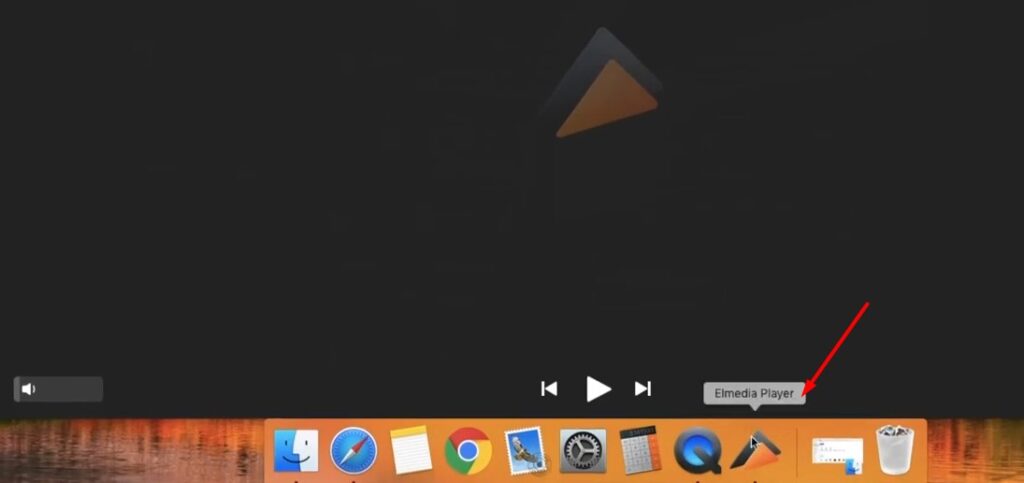
Watching Videos in Elmedia Player
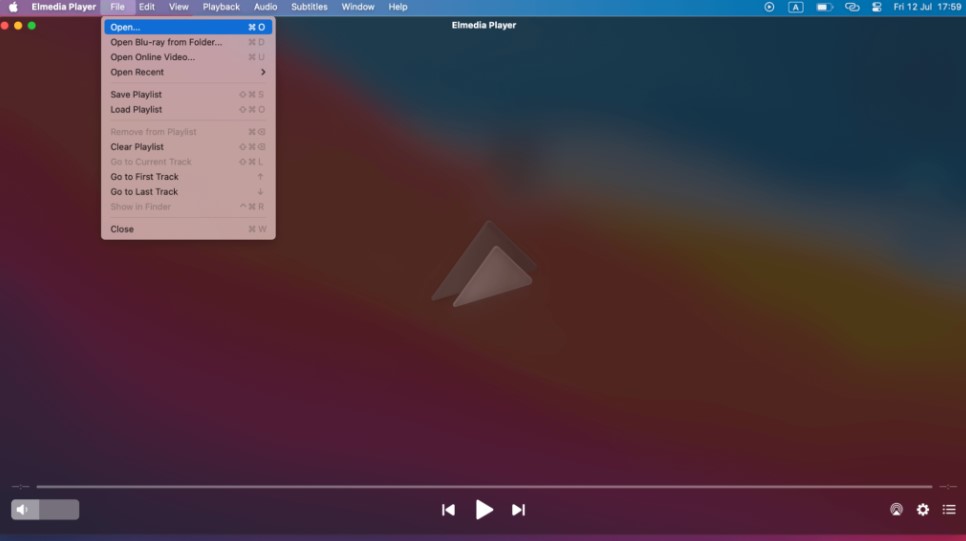
Elmedia Player makes playing AVI files on Mac easier. There are a few ways to start the playback:
- File Menu. Launch the Elmedia Player, click “File” in the upper left corner, then “Open” and select an AVI file to play;
- Drag and Drop. Drag your AVI file to the Elmedia Player window or onto the icon in your Dock;
- Open With. Select your AVI file from the folder with the right-click, select “Open With,” and choose the Elmedia Player app to launch it;
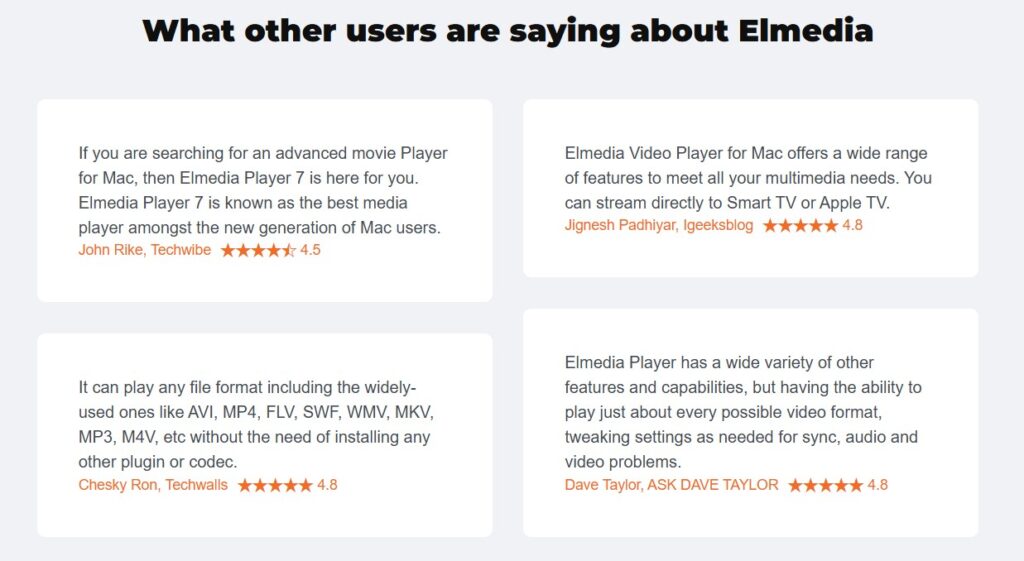
What Do Users Say About Elmedia Player?
Elmedia Player, both in the free and pro versions, has generally excellent ratings among users. For example, check the opinion of Reddit users. Most Mac users love its performance speed, interface, and advanced playback option. It’s popular because it allows you to stream local files to Chromecast and AirPlay devices. Also, this video player on Mac is the best buy for anyone interested in high-quality streaming video on large displays.
The Elmedia Player free version is liked for all basic playback needs. Plenty of free version customers use this software frequently to watch movies on Mac. But if you open almost any Elmedia Player Pro review, you will see that many users find the paid upgrade rather cheap to get access to such advanced features as 4K streaming, subtitle customization, full-screen playback, etc.
The fact that Elmedia can support multiple file types is another major reason to install it since the default player, QuickTime, can’t play back the files in AVI and WMV formats. Some users tested streaming multiple files from local and network servers. They claim not to have any sync issues, with stable video quality.
Overall, most users agree that Elmedia Player’s free and pro versions are easy-to-use media players on Macs with great support for all kinds of popular media formats.
Frequently Asked Questions
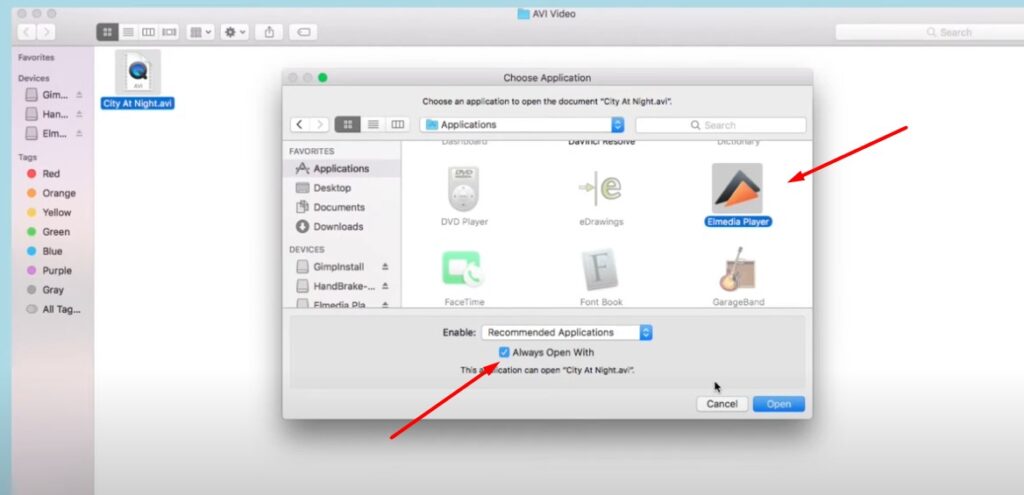
How do you set Elmedia Player as the default video player on Mac?
It is very easy to do. The steps are explained in the video tutorial posted on the developer’s YouTube channel – Eltima software (now known as Electronic Team Inc.):
- Start with choosing any video or audio piece in a specific media file format (for example, an AVI file) and right-click on it;
- Select “Open With” and select Elmedia Player;
- Do not forget to uncheck the box for “Always Open With” and press “Open”;
- That makes Elmedia Player the default software for all AVI files on your Mac. Repeat the steps for other formats – MKV or FLAC;
Is Elmedia better than VLC on Mac?
Well, it outshines VLC in many ways. Take, for instance, the Elmedia Player’s clean and easy-to-navigate interface on Mac. VLC has a powerful engine, but the outdated interface makes it hard to understand for some first-time users. Elmedia’s clean design and ease of use make it extremely accessible even to total novices. We chose the Elmedia video player for the best user experience on Mac.
Is Elmedia Player for Mac free?
Elmedia Player comes with a free basic playback version. If you want more advanced features like offline playback of YouTube files, local/online streaming, taking screenshots, and adding subtitles, there is a Pro version for you.
Is Elmedia Player safe to use?
Absolutely. Elmedia Player is constantly updated to deliver the latest security fixes and optimization patches. These updates keep Elmedia Player secure and easy to use even on corporate Mac OS systems.
Who is the developer of Elmedia Player?
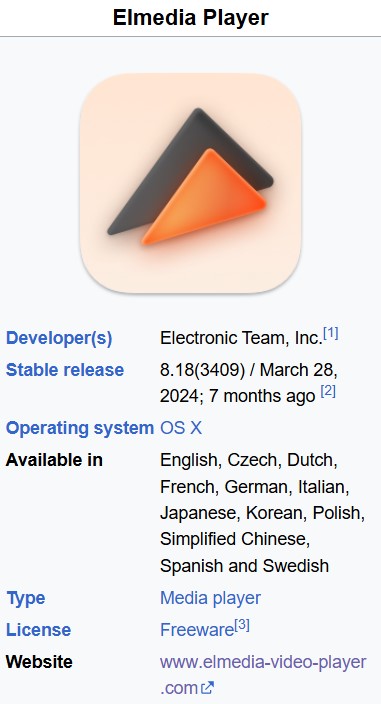
According to the official Wikipedia page, Elmedia Player was developed by Electronic Team, Inc. (previously a.k.a. Eltima Software). The developer team is a U.S.-based company founded in 2000. They developed the Elmedia video player as a powerful alternative to the default QuickTime player on Mac OS. By 2017, Elmedia Player had more than 1 million users globally.
Can I install Elmedia Player on Apple TV?
Yes! You can get Elmedia Player on Apple TV. Thanks to the seamless playback and streaming options, you can play videos and access your media libraries directly from your TV with the support of Apple TV.
How do you create playlists with Elmedia Player?
Just like making playlists on YouTube, Elmedia Player offers a pretty simple option to create a playlist of your videos and audio files on a Mac. To create a playlist, you need to open the files you’d like to add and “File” > “Save Playlist”. Give the playlist a name, add tags and destination path, then click the “Save” option. To import a playlist, click “Load Playlist” from the File menu and choose the file you want to load.
How to add subtitles with Elmedia Player?
If you want to add the already downloaded subtitles to any video from your library, copy the subtitle file (.srt) into the same folder as your video. Elmedia loads subtitles automatically when you watch the video if both files are in the same folder. Suppose you have more than one subtitle file – press “S” to change the files. When looking for the new subtitles, click “Subtitles” and “Search from OpenSubtitles.com” or download them from the Safari browser and then add them to the video’s folder.
How to take screenshots with Elmedia Player?
To take a screenshot, pick the destination folder in the “Preferences” under the “Capture” tab. Watch the video, and click on “Playback” > “Take Screenshot” to capture the frame. Like many other guides, this tutorial was taken from the official website for Elmedia Player review.
How to stream with Elmedia Player?
First, make sure your Mac and TV are connected to the same Wi-Fi network. To start playing any video in the Elmedia Player’s browser, select the “Streaming” icon at the bottom right. Then, choose your device or TV from the list, and wait until the streaming starts. This option is available only in the Pro version.
Where can you use the Elmedia Player?
Elmedia Player lets you stream to Chromecast, Smart TVs, Apple TV, AirPlay, and DLNA-compatible devices. Because of the Mac OS system’s cross-platform policy, you can also mirror it for iPhone and iPad screens.
Can Elmedia Player download YouTube clips?
Yes! Elmedia Player’s Pro edition has a YouTube download function that lets you download videos straight from this website.
Verdict
Elmedia Player is the best media player for Mac. We’ve had an almost flawless experience testing this tool for our Elmedia Player review. It works smoothly with popular and rare formats. The playback doesn’t lag, and it is streaming on Chromecast. We’ve also enjoyed the EQ controls and Picture-in-Picture mode that you won’t find in other media players like VLC or QuickTime. The free version is too basic, to our liking, but the Pro version is a real beast other Mac players just can’t beat. Try Elmedia to ensure it is the best media player for Mac OS!