How To Root Bluestacks 5 On Your PC: The Complete Guide

Root Bluestacks 5 To Use the Full Potential of The Android Emulator
Bluestacks 5, which is considered the best Android emulator for PC, provides a smooth method to play mobile games and apps straight on your Windows OS. However, those who are advanced users might find the basic experience limiting. That’s when rooting can help them because it gives administrative entry and unlocks their emulated Android system’s complete capability. The following guide will help you root Bluestacks 5 successfully.
Why Do You Need to Root Bluestacks?
Rooting of Android is similar to jailbreaking an iPhone. This includes many advantages such as:
- Unrestricted App Installation: No more boundaries! When you root Bluestacks 5, it becomes possible to install apps that are usually blocked due to Google Play Store rules or device compatibility;
- Enhanced Performance Tweaks: Rooting can give you access to alterations at the system level, for example speeding up the CPU and GPU by overclocking them so that gaming becomes more fluid or adjusting memory handling for enhanced app functioning;
- Advanced File Management: With rooting, you can enter into the entire Android file system. This allows you to go deeper and investigate folders that were not available before. It also lets you make backups and recover data with more detailed control;
- Ad Blocking at the System Level: Are you fed up with intrusive ads that constantly interrupt your mobile experience? Rooting gives you the ability to set up system-level ad blockers, which means all apps on your emulator will be free from adverts;
- Automation Options: With Bluestacks 5 root access, you can explore a wide range of automation possibilities. This includes using scripting tools and automation frameworks to automate repetitive actions within apps or games;
The choice of whether to root Bluestacks 5 on your PC is dependent on what you require. If you are a normal user who just wants to enjoy mobile games on your computer, then rooting might not be needed for this purpose.

But for the types of users listed below, rooting can provide valuable benefits:
- Power Gamers: Gamers who are always looking for an extra advantage can make use of rooting to access performance-boosting adjustments, set up altered game versions, and employ automation aids in handling repetitive duties;
- Developers and Testers: Developers and testers can make use of the unrestricted app installation and advanced file management features to test their creations thoroughly in an environment they control, such as Bluestacks;
- Privacy Enthusiasts: People who value privacy greatly might consider rooting as a way to block ads across the whole system and potentially install custom ROMs that come with improved privacy options;
Can You Root Bluestacks Without Risks?
Unfortunately, rooting is not a security-proof process and it involves changing the default system settings to use all the locked features of your Android device.
That is why before you learn how to enable root in Bluestacks 5:
- Security Weaknesses: By gaining root access, the security barriers are essentially bypassed. This means that bad apps can easily exploit these weaknesses in your device, potentially putting both your system and data at significant risk. Only use root from trusted sources and be careful with app installations;
- Warranty Invalid: It’s possible that rooting could prevent your PC warranty from being intact, but this will be dictated by the policy set up by the manufacturer. If preserving your PC’s warranty is an important matter for you, then proceed with care;
- Software Instability: Wrong rooting techniques or unsupported tweaks could make Bluestacks unstable or cause it to crash entirely. Do good research and use reliable instructions;
- Risks of Bricking: If rooting is not successful, it may lead to a situation where your Bluestacks become useless (bricking). Please make sure to back up all data on the emulator before starting this process;
How to Root Bluestacks 5 (2024 Edition)?
Disclaimer! The steps mentioned below include the drastic changes in system settings. Proceed with caution and make sure to have a backup of your Bluestacks data before trying to root.
Here’s what you’ll need to enable root in Bluestacks 5:
- Your PC with Bluestacks 5 installed;
- Administrator privileges on your PC;
- A text editor, for example, Notepad or Notepad++. A rooting script or tool (this depends on which method you choose);
There are 2 primary approaches to how to root Bluestacks 5 in 2024.
Method 1: Modifying the Bluestacks Configuration File (Manual Approach):
- Find the Bluestacks Configuration File: The place where you find this file can be a little different based on your operating system;
- Windows: Typically found at C:\ProgramData\BlueStacks\Engine\UserData\SharedFolder\Config.ini;
- Mac: Go to Library > Application Support > BlueStacks > Engine > UserData > SharedFolder > Config.ini;
- Open the File with a Text Editor: Select Config.ini file and click “Open with,” then choose your desired text editor;
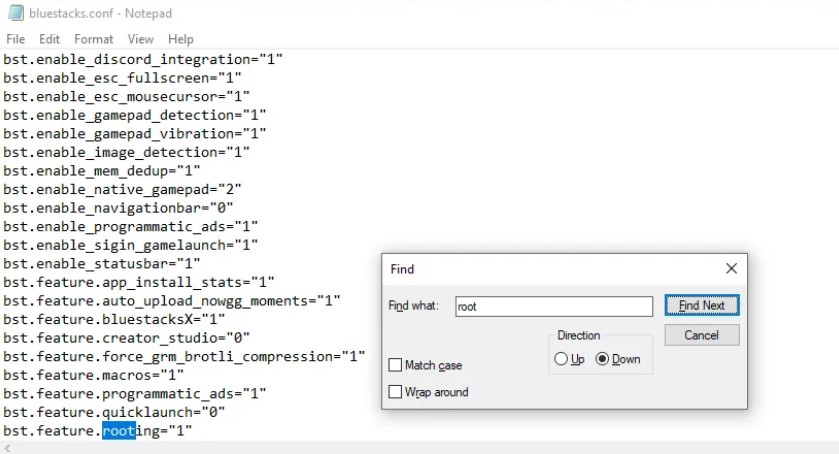
- Locate the Rooting Setting: Search for the line containing “bst.feature.rooting=”;
- Enable Rooting: Change 0 to 1. This line must now be “bst.feature.rooting=1”;
- Name Your Emulator: Keep scrolling down in the file and find your particular Bluestacks instance. You will see sections with headings like bst.instance.Nougat64 or bst.instance.Pie32. Here, “N” stands for the Android version and 64 or 32 represents the architecture. Identify the section that matches your Bluestacks version (check Bluestacks settings if unsure).
- Activate Root Access for Your Device: Inside the area where you’ve marked your instance, look for the line with “enable_root_access=”. Change what comes after the equal sign to 1. Now this line should say “enable_root_access=1”.
- Save the Configuration File: Once you’ve made the edits, save the Config.ini file;

Method 2: Applying a Rooting Script (Automated Approach):
- Even though this way is easier, it uses other tools. Be careful and get scripts only from places you can trust and that have good comments from users;
- Search for a Rooting Script: Look on the internet and type “Bluestacks 5 root script 2024”. You should find scripts that people say good things about and give easy directions;
- Download and Run the Script: Proceed to download the script based on instructions provided by the developer. Usually, you will need to double-click on it for execution. The script might automate changes in the configuration file or apply other rooting methods;
Read and understand the script’s specific instructions. Every script might display unique prompts or warnings during its execution.

After following either method, it’s crucial to verify successful rooting:
- Launch Bluestacks 5: Open your Bluestacks emulator;
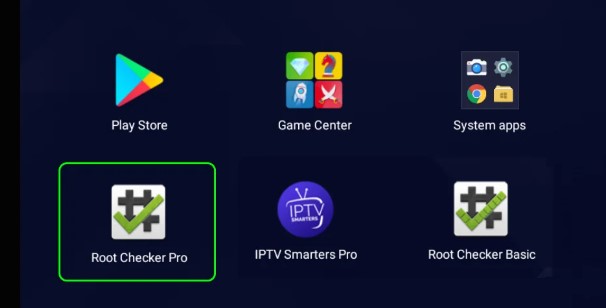
- Download an Application for Checking Root: On the Google Play Store, get a root checker app such as “Root Checker” or “BusyBox”;
- Run the Root Checker App: Open the downloaded app and initiate a root check;
- Check Root Access: If the rooting process was successful, the app should show a message such as “Congratulations! Your device has been rooted”;
Additional Tips:
- Restarting Bluestacks 5: When you root Bluestacks 5, it is suggested to restart Bluestacks 5 so that alterations can be completely applied;
- Unrooting Bluestacks 5 (Optional): If you wish to remove root access from your device, you can do it by changing the values in the “Config.ini” file back to their original state (Method 1) or applying an unrooting script (Method 2, depending on the script);
- Using Root with Care: Having root access is a powerful privilege. Please be mindful to solely install applications from reliable sources and be careful when making system-level alterations;

Rooting techniques might change as time goes on. Look for the refreshed guides and scripts that are made for the specific Bluestacks version you currently use. Also, make sure to use FurMark software to see if your PC can handle these new methods of rooting Bluestacks 5.
How to Root Bluestacks 5 with BlueStacks Tweaker?
BSTweaker has a very simple interface. You can use it easily and become skilled in navigating within minutes – even if you are completely new to this type of program. The main window of BSTweaker is divided into nine tabs that allow easy access to different sections where customizations are available. This includes everything from basic changes like adjusting screen resolution or changing keyboard shortcuts to more complex alterations (such as modifying how the PC processor manages memory).
The Interface
In the “Main” tab, users see a quick view of how their emulator is now, with choices to start or stop the BlueStacks engine. The “Settings” and “Config” tabs are available for users who want to understand customization better. These tabs show what goes on inside the emulator and allow people to change it at its core if they are brave enough! BSTweaker also works well with many instances of emulators. This gives advanced users an easy way to switch between different digital environments and manage them efficiently at all times.

The “Experimental” tab is where the real magic happens – it’s a collection of state-of-the-art features for those who like to experiment. Here, you can manage Xposed plugins, handle Google accounts, edit BSProp system files, and even try out console command-line tools if that’s your kind of thing.
Where to Download?
To get started, you can download BSTweaker from the official website or use any reliable third-party website. The installation process is very easy; clear instructions will show up on your screen to guide you through it smoothly. After it’s installed, connecting BSTweaker to your BlueStacks setup is simple: open the app, go to the “Helper” tab, and click on “Patch”.
The Step-By-Step Guide:
- Initial Setup: First, make sure Bluestacks is installed or updated on your PC. But don’t open it yet! Also, check that no related processes are running in the background by looking at Task Manager (Ctrl+Shift+Esc) and ending any activities linked with Bluestacks;
- Download and Install Bluestacks Tweaker: Get a copy of the Bluestacks Tweaker. Run the program by running the .exe file. You can also use “Force Kill BS” to make sure all Bluestacks operations are ceased;
- Unlocking Bluestacks: To unlock, go to “Root” in the Tweaker. Make sure ADB and Bluestacks indicators are red which means they’re ready for unlocking. Then, click on the “Unlock” button and wait for the signal “Unlock: True”;
- Launch Bluestacks emulator: Afterwards, go to the main section of the Tweaker and use the “Start BS” button to wake up Bluestacks. This revival process will get Bluestacks ready for its next important actions;
- Rooting: If you go back to the Bluestacks root mode in Tweaker, ADB, and Bluestacks should have green indicators. Click on the “Patch” button and notice if there is a status saying “Root Patch: True”, this shows that rooting was successful;
If you have any trouble with how to root the Bluestacks 5 emulator on a PC, you may check the following YouTube tutorial.
How To Root Bluestacks 5: Frequently Asked Questions
- How can you play with Bluestacks 5?
Once you root Bluestacks 5 and have it installed completely, you may use this emulator to search for any Android 11 compatible game title from the program’s Search Bar. You can find the Search Bar on the Home screen or via the App Center. Choose the game you want to play and launch the title on the Bluestacks 5 emulator.
- Can you root Bluestacks 5 in 2024?
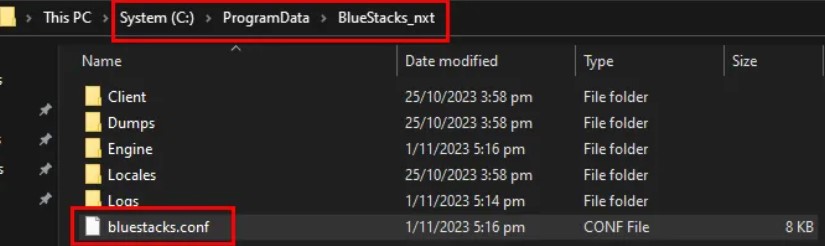
Yes, another method for advanced users – open the file called “bluestacks.conf” and then enable the root access to the Android device. In the engine of the Bluestacks emulator, you should modify the settings located in 2 files for the Master device. Change “ReadOnly” to “Normal” for both the “fastboot.vdi” and then “Root”.
- Does Bluestacks 5 work faster than Bluestacks 4?
Finally, there is the performance aspect to consider. The game appears excellent on Bluestacks 4 and Bluestacks 5 alike, with both able to play it smoothly at maximum FPS settings of 60 FPS. However, Bluestacks 5 is more efficient in delivering this similar experience.
- How to launch Bluestacks 5?
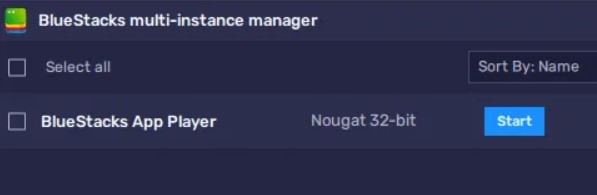
You may need to give Bluestacks 5 administrator access to launch it, because of limitations within Windows. Select “Run as Admin” to start Bluestacks 5 successfully. This process is secure and won’t harm your desktop/laptop in any manner.
- Is Bluestacks Tweaker safe to use?
Getting Bluestacks Tweaker from its official website or FileHorse is safe. However, remember, it’s always important to be careful when you’re downloading software from places that are not official.

Conclusion
If you root Bluestacks 5, it not only expands the range of what is doable within the emulator but does so in a way that lessens the dangers associated with rooting physical devices. With this systematic guide, we have walked through unlocking, rooting, and upgrading Bluestacks 5. Now you can confidently use all features of Android safely in an emulator environment on a PC. Enjoy your freedom and explore possibilities with the unlocked version of Bluestacks 5!