How to Record Incoming Call on iPhone Without App?
Reasons to Learn How to Record Incoming Call on iPhone Without App
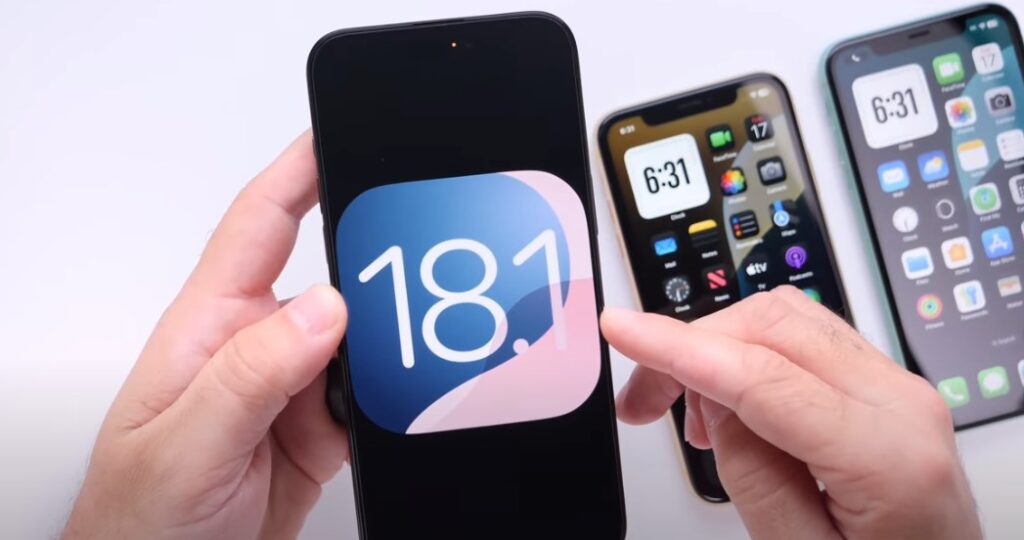
Tech enthusiasts are aware of the fact that Apple’s iOS lacks a few important options. Fortunately, some of them have been added during the latest updates of Apple’s operating system. For example, native call recording has been added with iOS 18.1 (October 2024), but in older versions, this natural feature for Android function was absent. The KimliSoft team is going to tell you how to record incoming call on iPhone without app so you can prevent the installation of spyware, malware, and adware with third-party apps.
There are many reasons why you may want to record calls on your iPhone:
- Business Needs. Entrepreneurs, freelancers, and professionals often record client calls to keep track of instructions, meetings, or agreements;
- Personal Records. To capture a family member’s story or news from friends;
- Legal Backup. Document threats or stalking. Or record customer service calls for evidence. But always check the local laws, since in some states it is illegal to record incoming calls on iPhone.
Methods of How to Record Incoming Call on iPhone Without App
Before using any of these methods, upgrade the iPhone and watch a few tutorials on how to use the mentioned methods. Such a preparation may save you from the dumbest mistakes, like forgetting to hit the buttons “Record” and “Save” at the most important moment.
Native Call Recording with iOS 18.1 and Above
Apple finally heard the pleas of many users and added a native feature of call recording with the release of iOS 18.1. This means you can record any calls directly through the Phone app. Powered by Apple Intelligence, this option became a game changer thanks to simplicity and privacy.
Here is how this method works for call recording:
- Make sure your iPhone is compatible with iOS 18.1 or later. The compatible models are iPhone XR, XS, and newer (including all SE versions too).
- Start a call. Make or receive a call using the Phone app.
- Hit “Record” during the call. Find and tap the waveform icon in the top-left corner of the call screen. A 3-second countdown will start, and the automated voice will announce “This call will be recorded”. No sneaking, Apple aims for transparency and legal obligations.
- Stop recording. You may end the call by tapping the “Stop” button. The recording saves automatically to the Notes application, in the folder titled “Call Recordings”.
- Access your saved recordings. Open the Notes app, find the recording, and tap “Play”. You can also get a transcript for it in such languages as English, Spanish, Mandarin, Cantonese, and Korean in supported regions. Also, you may receive an AI-generated summary.
We like this method of call recording because it is legal, safe, and simple to use. The interface of the upgraded Phone and Notes apps is straightforward, awesome, and seamless. And the AI-powered transcription is shockingly accurate.
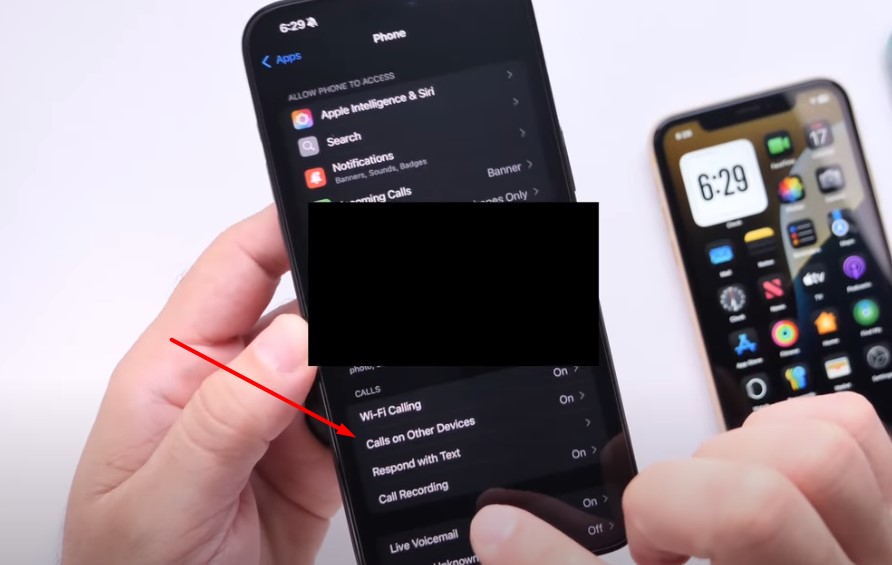
The major catches are regional limits for EU users. Check Apple’s iOS Feature Availability page for your country. The two-party consent may be a good option from a legal point of view. But you won’t be able to record a call secretly.
You can read the detailed review of the built-in call recording option by the reputable tech bloggers at CNET.
Voice Memos
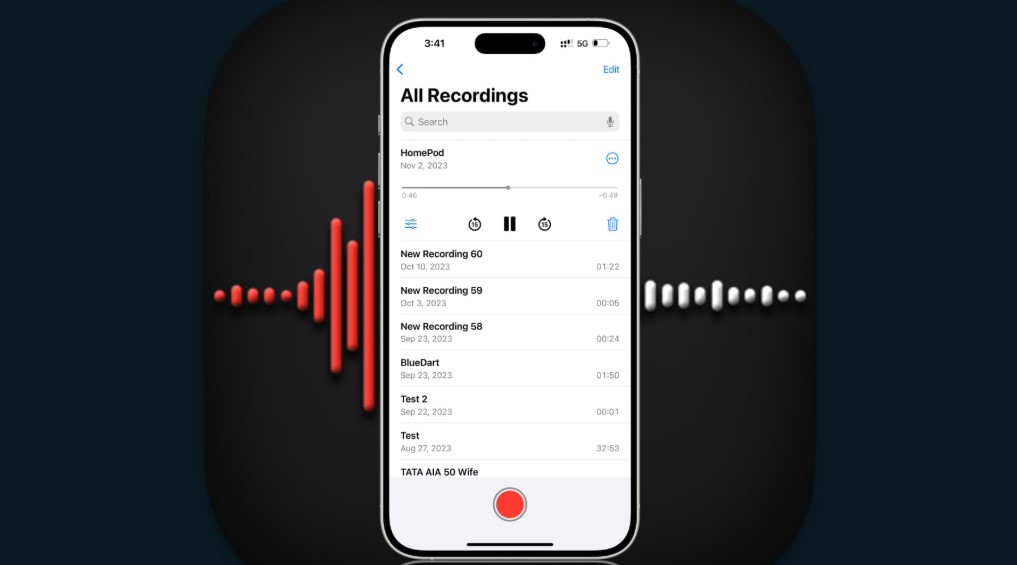
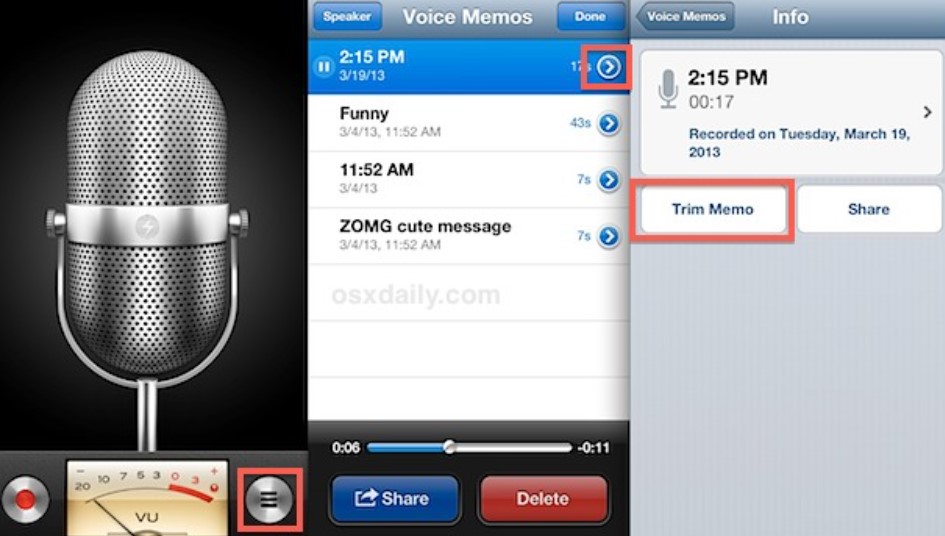
If you need another method, apart from 18.1 natural call recording, try the default Voice Memos app. It comes pre-installed on every iPhone. It is so easy to use – while shopping at Walmart or driving a car, just tap the tips on the phone’s screen to start recording. It can become your faithful sidekick for daily recordings. The method is basic but suitable for most tasks.
There are a few steps to follow when recording a call with Voice Memos:
- Answer the call. Pick up the incoming call on your iPhone.
- Open Voice Memos. Launch the Voice Memos app. You have to swipe down to Spotlight Search if you are swift.
- Start recording. Tap the red button “Record”. Place the call on speakerphone to capture both parties of the conversation.
- Position the phone close to your ear to make sure the speaker is loud enough. Ensure the background is as quiet as possible.
- Stop and save. Tap the button “Stop” when the recording is done. The recording is saved in the Voice Memos application. You can automatically share it via Messages, AirDrop, or email.
This option won’t cost you anything, totally free. There is no need for the Internet; the method works for offline records, too – a great pick for spotty connections. Record anything and not just calls, with decent audio quality.
Among the downsides are tinny sounds of speakerphone recordings and the obvious background noise. Also, you have to start and stop the recordings manually. Clunky sounds are possible mid-recording. And there is no automatic text transcription.
Screen Recording with Audio
This method is a bit tricky. Use your iPhone’s built-in screen recording to capture a call as a video file. It is not perfect, but it does the job of basic call recording. Here is how you should use this option:
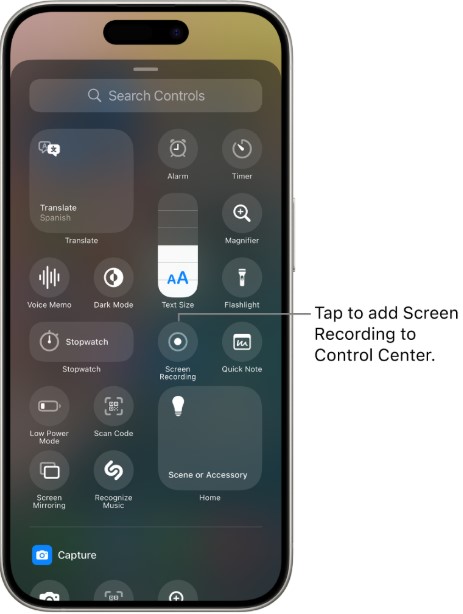
- Turn on the Screen Recording option. Go to Settings, then Control Center, and add “Screen Recording”.
- Start the call or answer the incoming call.
- Access the Control Center with a swipe down in the top-right corner (or up on older models).
- Press and hold the “Screen Recording” icon. Then turn on the mic. Tap the mic icon to record. Tap “Start Recording” once again.
- End Recording. Stop the recording via Control Center or the red status bar. The file saves to the Photos ass as a video file.
This method is totally neat. You don’t need any apps, just native iPhone tools. With the mic on, you can record both parties of the call, but only via a speakerphone. Easily trim or share the video records via Photos.
Though we’ve noticed a few hiccups. You get a video file for recording, and it can be heavy. Think of 100MB for a 5-minute call. Install the app to convert the recorded video to the audio format. Audio can be muffled if you are not on speakerphone. There is no text transcription.
These and other methods of how to record incoming call on iPhone without an app are discussed by Reddit users. You may learn a few interesting tricks and nuances.
How to Record an Incoming Call on iPhone with Apps?
Still, the built-in ways of how to record incoming call on iPhone without an app may lack some features you need. In this case, the only solution is the installation of third-party applications from the AppStore. Not all apps in this niche belong to the category of spyware.
We’ve tested and picked the safest applications for recording incoming calls on iPhone. All these applications are available for downloading at the moment of writing (July 2025) straight from AppStore in a totally safe way.
Rev Call Recorder
This free app for recording incoming and outgoing calls, with optional paid transcription. Here is how it works:
- Download from the AppStore.
- Tap “Start Recorded Call”.
- Merge the call with the Rev’s server.
- Recordings are saved in the app and can be shared via Dropbox or email.
We’ve enjoyed the unlimited free recording without ads or subscriptions. The quality of the audio is high. Optional transcription is $1.50 per minute, human-verified and 99% accurate. The pricing is free for recording, with paid transcription.

Pros: free recording, simple interface, no hidden fees, great for random use.
Cons: U.S. phone numbers only, no VoIP recording, manual merging can be clunky.
TapeACall Pro
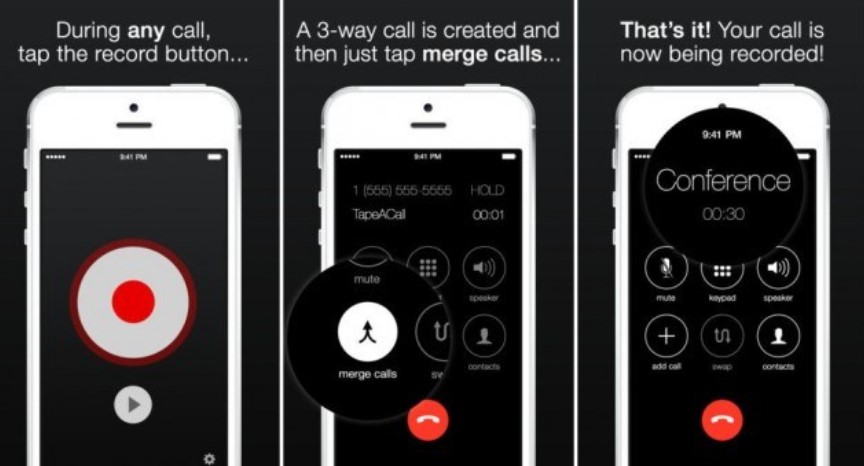
This premium application with a slick interface for call recordings. Transcription and cloud storage are key options. Here is how it works:
- Install from the AppStore.
- Tap “Record” inside the app.
- Merge the call with TapeACall’s server.
- Save recordings in the app or cloud (Dropbox or Google Drive).
We’ve loved the unlimited recording length, transcription via AWS (the pricing may change), easier sharing, and cloud backups. The price is average – $11 per year. Transcription and premium features cost extra. There is a 7-day free trial.
Pros: user-friendly, supports international calls, and has many useful features.
Cons: needs a subscription and a three-way calling support from your provider.
Other Tools for Recording Incoming Calls
Besides these two apps on iPhone, check the following tools and services to record an incoming call:
- Google Voice. It is a free option for U.S. and Canadian users. Google Voice can record only incoming calls. Set up a Google Voice number, and enable the option of recording in Settings. Press “4” during a call to start. Saved recordings are stored in the MP3 format in the Google Voice inbox. The major drawback is the absence of outgoing call recording.
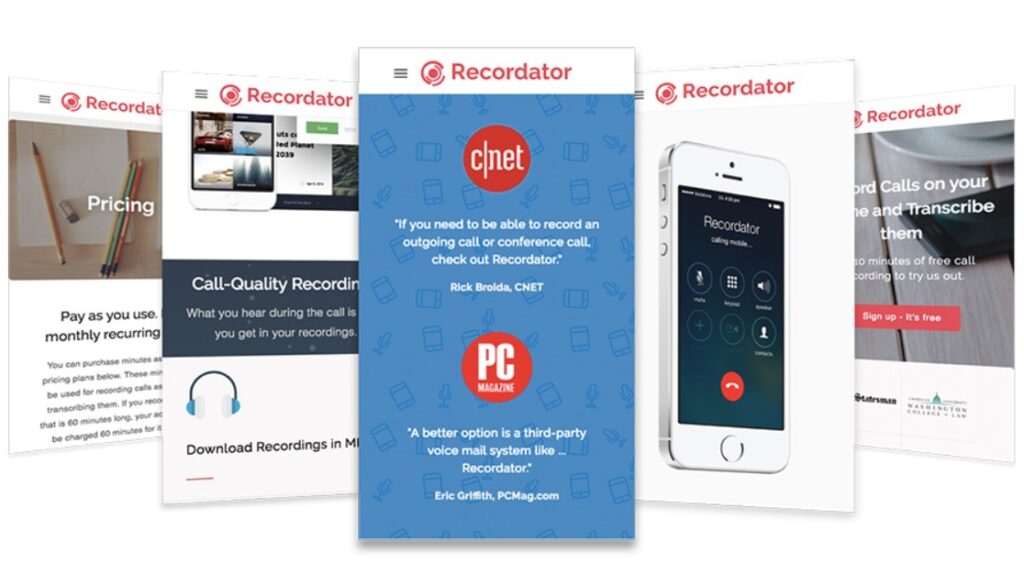
- Recordator. A browser-based service without the need for app installation. You need to call a toll-free number to record an incoming call on an iPhone. Pay per minute ($0.10–$0.20) with the transcription included. This service requires a stable Internet connection and manual steps.
- Use a Second Device. Use an Android phone, laptop, or digital recorder to capture the call on speakerphone. Audio quality changes, and it is not practical on the go.
If you want to compare all the methods of how to record incoming call on an iPhone with third-party apps and tools, check the comparison table.
| Feature | Rev Call Recorder | TapeACall Pro | Google Voice | Recordator |
| Cost | Free ($1.50/minimum transcription) | $11/year + extra paid features | Free for U.S. and Canadian users | $0.10–$0.20/min |
| Recording Type | Incoming & Outgoing | Incoming & Outgoing | Incoming only | Both |
| Transcription | Paid (human-based, $1.50/min) | Paid (AWS, varies) | No | Included |
| Ease of Use | Moderate (manual merge) | Easy | Moderate | Moderate |
| Availability | U.S. only | Global (with 3-way) | U.S./Canadian | Global |
| Storage | App, email, Dropbox | App, cloud | Google Voice inbox | Browser, email |
Creative Tips to Make Recording Incoming Calls Easier
Recording calls on an iPhone can and should be an easy thing to do. Here is how to record an incoming call on iPhone without an app and any issues:
- Name your saved recordings with memorable titles or dates to keep them organized;
- Edit like a professional with iMovie (free on iPhone and iPad) to trim screen-recorded calls and make the files smaller for storing them on your device;
- Background ambiance. Consider recording an incoming call in a quiet room without any loud noises in the background.
What Is Coming Next for In-Build Recording Incoming Calls from Apple?
We hope that Apple’s native call recording is just the beginning. With further updates for iOS 26, we might get such options for call recording as:
- Expanded language support with AI tools for instant transcriptions;
- Automatic recording option like the one integrated with third-party apps (think of TapeACall);
- Cloud integration with future updates could make it possible to sync recordings to iCloud for easier access.
FAQ
How to record an incoming call on iPhone without app for free?
The default iPhone’s features (especially on iOS 18.1 and higher) like Voice Memos and Screen Recording options. Answer the call, enable speakerphone, launch Voice Memos or Screen Recording with the mic on. Save the recorded file to your device when the phone call is over. Do not forget to use the pop-up app blocker if you use third-party apps on your iPhone for recording.
How to record a call on an iPhone without an announcement?
Use Screen Recording and Voice Memos – they do not send any notifications or sound alerts about the recording’s launch. Start the call, enable speakerphone, and record manually whenever you need.
How to record an incoming call on an iPhone without an app in iOS 18?
We recommend using iPhone XR+ or later versions. Tap the waveform icon to record. Recording saves automatically to Notes with transcription.
Conclusion
KimliSoft confirms that recording an incoming call on your iPhone without an app is absolutely doable, thanks to iOS 18.1’s native features – Voice Memos and Screen Recording tools, foremost. Each method has quirks, but anyone can use them for safe and legal recording of iPhone calls. If you need more bells and whistles like cloud storage and voice-to-text transcriptions, use legal apps like Rev Call Recorder or TapeACall Pro.
If you like this type of content, please support our team by following and bookmarking the website. The KimliSoft team will continue to post interesting guides.