Easy Speech2Text: The Quickest Way From Talk to Text
Quickly Transform Talk To Textual Notes With Easy Speech2Text
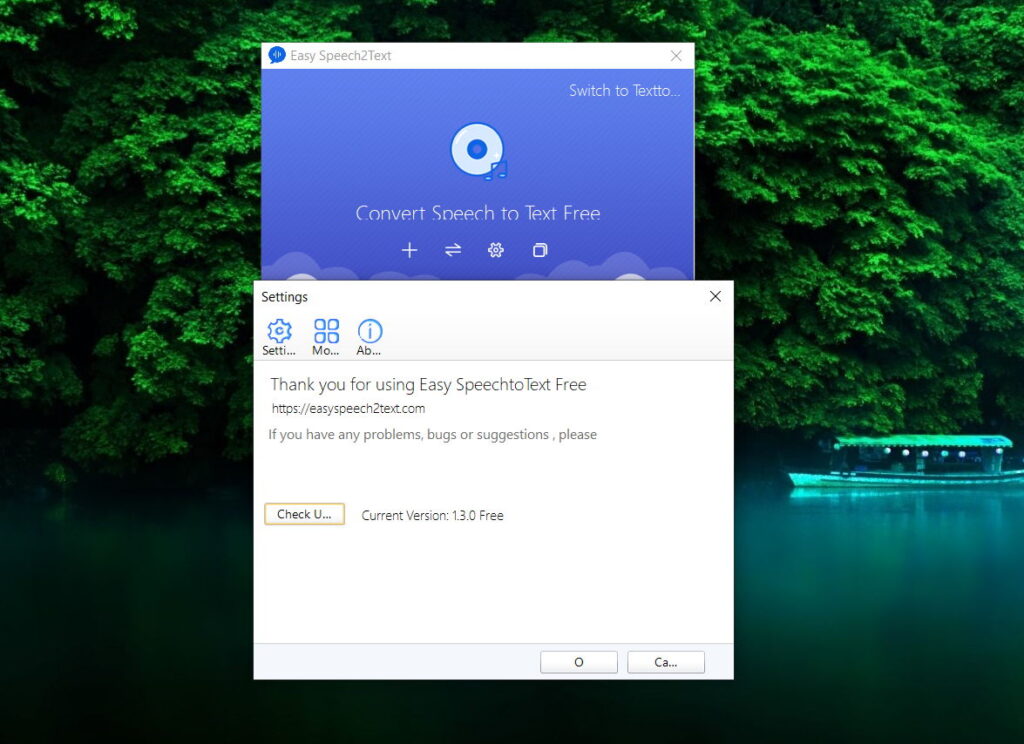
Long before the profound AI voice-to-text recognition programs developed by the tech geniuses from Google and Microsoft, there used to be only tools like Easy Speech2Text made by groups of enthusiasts as their “pet” IT projects. Despite the retro charm and efficient work, its simple, almost outdated interface with a limited function of converting only mp3 files to textual notes and vice versa seems an almost unacceptable flaw.
Skeptics may say – what’s there to love these days? But don’t hurry to write it off your speech-to-text list – this software is more than one can see at first sight. Let’s figure out in the following guide the key features and user experience of this underrated tool.
Overview Of Easy Speech2Text
Developed by the independent developer “PDF Link Editor”, Easy Speech2Text tool is an efficient voice-to-text recognition freeware compatible with the latest Windows OS versions. It allows users to convert their spoken words into textual notes easily and quickly. The latest 2.1.0 version (released in 2019) has undergone an antivirus check providing safety for its users.
Just in a few clicks, with minimal effort, you will be able to transfer your audio files into readable text and the English language is not the only supported language. This speech2text Python-based tool will be specifically useful for people who need to transcribe audio meetings, podcasts, dictation/lecture notes, interviews, YouTube audio fragments, and more into written text.
According to the report from the Second International Conference on Edge Computing and Applications (ICECAA), Text-To-Speech (TTS) and Speech-To-Text (STT) recognition software have significantly advanced recently assisting individual users and corporate clients all over the world.
Various applications of TTS and STT technologies using conventional approaches and deep data learning methods are widely used in different niches including healthcare, accessibility, customer support service, and language translation, to name a few.
Voice/text recognition technology is getting in higher demand professionally and personally, so it would be beneficial to learn how the STT and TTS tools work. Start your journey to the world of voice/text recognition software from simple yet efficient tools such as Easy’s Speech2Text.
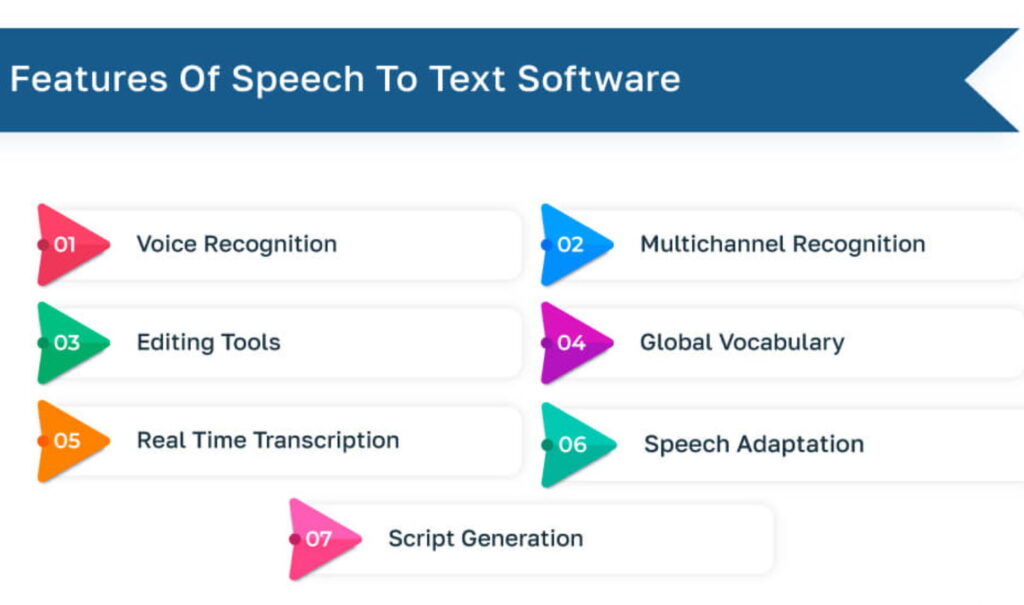
Key Features of This Speech2Text Commander-Based Software:
- Multiple Language Support – the tool can interpret both major and rarest languages including German, Chinese, Japanese, French, Spanish, English, Russian, Ukrainian, and Afrikaans;
- Cloud Storage Options – Users can store their transcriptions both locally on their devices or sharing via the cloud storage;
- Flexible Audio Customization – Users can customize the audio quality settings to improve the text output;
- Both Speech and Text Recognition – Users can pick between voice-to-text and text-to-voice options anytime expecting high accuracy results in both modes;
- Fully Automated Transcription – Convert audio files into written words with just a few clicks. Unlimited editing in the transcription windows is also available;
- Simple Interface – Specifically good for PC users with a beginner level of technical expertise;
Pricing Options
Before the official website shutdown users could download two versions of this speech2text software online – Free and Pro versions. However, as of 2024, the tool is available online as freeware (version 2.1.0.), under different developer brands (for instance, Speech2Text Inc. or similar). The free version used to be quite limited offering only English as the recognition language, a 5-minute limit of audio content, and only 1000 words to convert.
Since the Pro version was dismissed the freeware has no such limits and supports multiple languages as well as lengthy conversion sessions both for STT and TTS modes. Though, the free version lacks the audio formats that used to be available for the Pro users.
How Does It Work?
Users can choose between 2 modes:
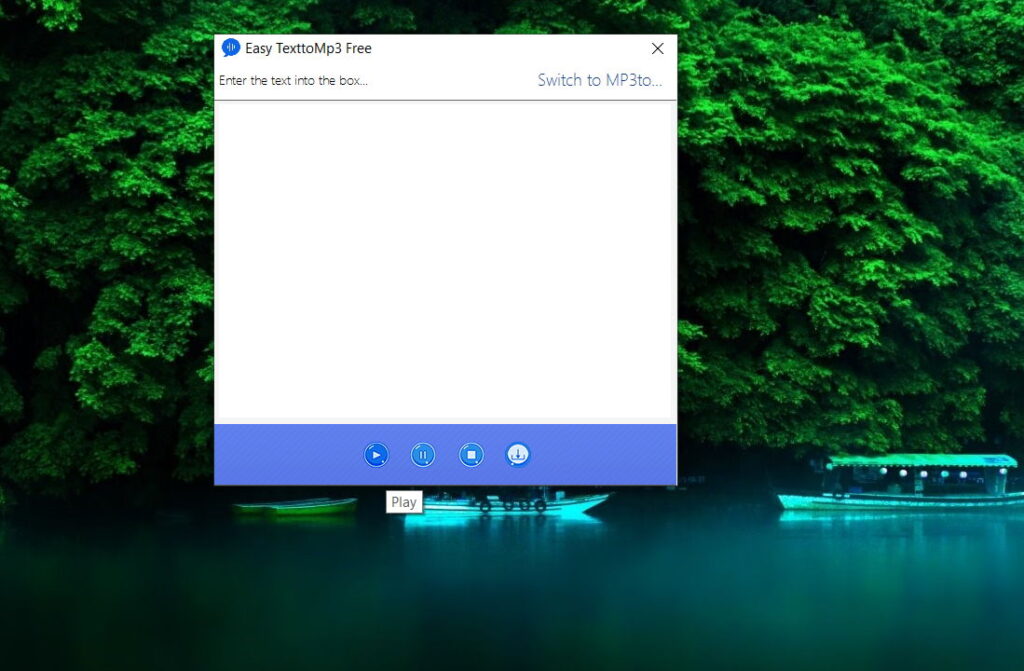
1) Text-to-speech mode
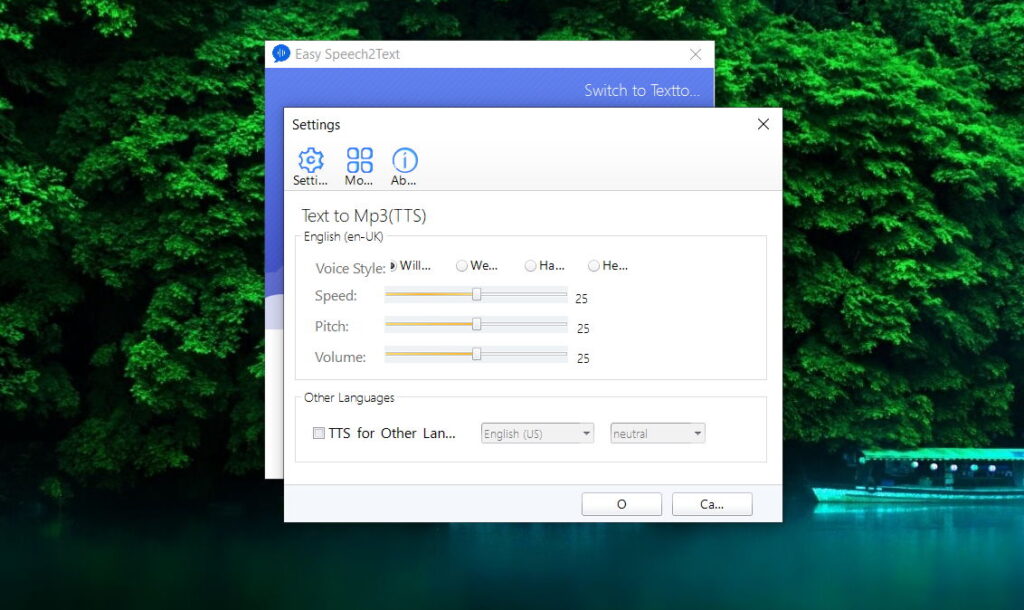
In this mode, users can either load a text file from a PC or paste/type their textual notes into the software window. Unlike Microsoft Azure Speech2Text, this program quickly converts text to voice and plays it in the built-in audio player. After the conversion you may edit – adjust the volume, pitch, and speed of the voice, and select/switch between 4 speaker’s voices (only English UK accent) – female, male, whisper, and neutral. The final audio file can be saved in an MP3 format on your PC.
2) Voice-to-text
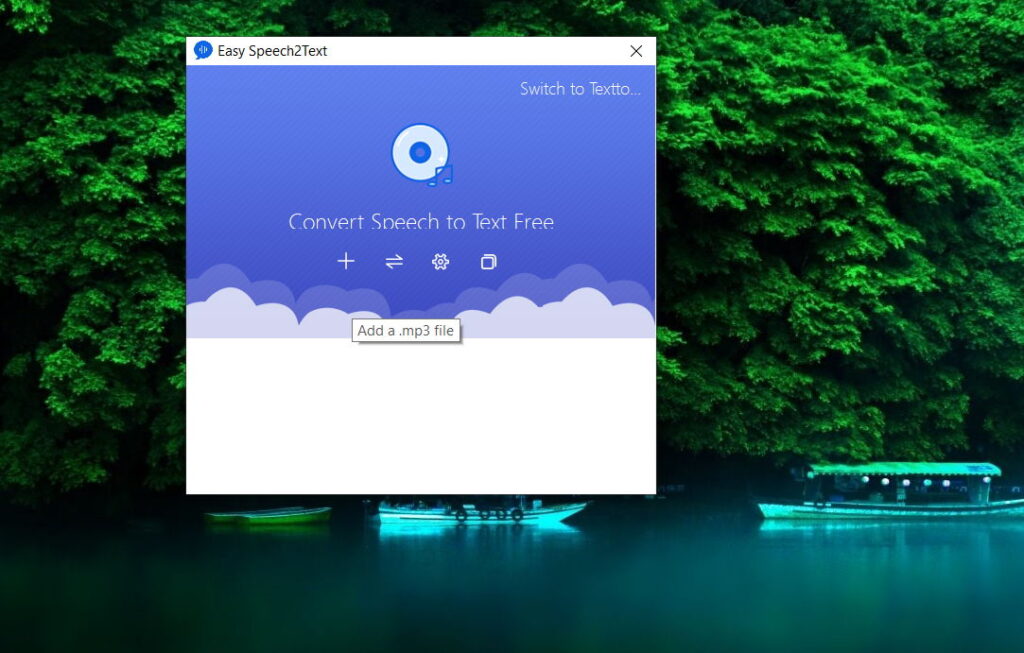
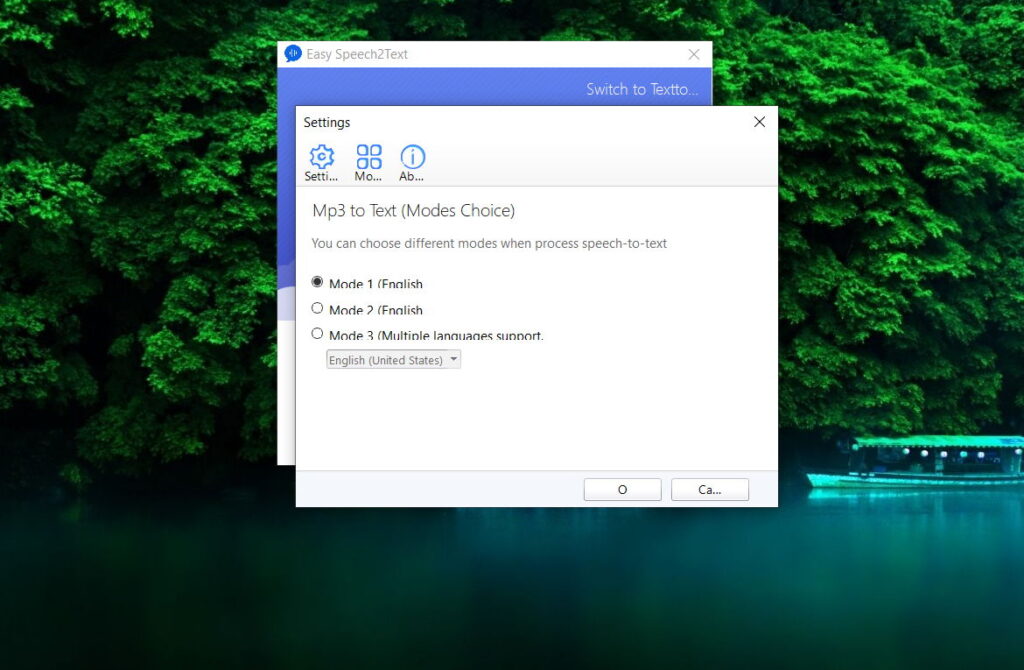
In this speech2text Python-driven mode, users can either record their voices with a microphone or “drag and drop” their recorded audio files into the tool’s window to start the process of conversion to text. The program uses the tech-savvy Google Speech2Text tech to accurately transcribe spoken words. After getting the transcription, you may copy, download, edit, and save the written text straight in the program window.
In both modes, this Speech2Text commander tool uses cutting-edge algorithms to convert audio into written words and vice versa. It effectively analyzes different speech patterns to generate the most accurate text output possible.
Pros Of Easy Speech2Text:
- Compact and lightweight: It weighs less than 11 Mb;
- Outstanding voice recognition feature: This tool uses top-notch dictation recognition tech;
- Enhanced transcription accuracy: The spoken words turn into easy-to-read text;
- Quick performance: The tool works surprisingly smooth and fast;
- Intuitive, user-friendly interface: Even a software novice can figure out how to use it in mere seconds;
- Support of many languages: To attract diverse users globally the developers added multilingual support;
- Support of the Text-to-Speech function as well: Most voice recognition tools focus on STT or TTS modes, but this software handles both technologies perfectly;
- Helps in different domains: A reliable assistant to students, teachers, translators, and customer support specialists;
- Fewer risks: Reduces the risk of getting errors associated with manual transcription;
- Reduced recognition time: Automates the slow process of manual text conversion from speech records;
- Everyone can use it: Available as freeware;
Cons Of Easy Speech2Text:
- Supports only 2 most popular audio formats: The tool works only with MP3/FLAC file extensions;
- Limited language support for voice recognition: There are fewer supported languages for voice recognition compared to the supported text-to-speech languages;
- No mobile application: There is only a desktop version for Windows OS;
- The recognition/transcription accuracy lacks consistency: Some users claimed they had inconsistent accuracy issues, though the tool mostly boasts high accuracy;
System Requirements and Compatibility
Compared to other speech2text tools and assistants, Easy Speech2Text is accessible only for Windows 10 OS or higher versions. A user will also need a computer with:
- An 8GB of RAM;
- A 1GB graphics card;
- An Intel Core i5 or higher processor;
- A contemporary microphone;
- A sound card compatible with Windows 10 OS or later versions;
- An active Internet connection;
As you can see, the minimum system requirements are quite acceptable for most PC users. However, the tool could benefit from a native Android/iOS app.
How To Install This Speech2Text Tool?
Since the official website is unavailable, you may find Easy Speech2Text freeware on almost any software-centric message board or social media (think of Reddit, Facebook, or Cnet, to name a few).
The step-by-step installation process is the easiest thing to do:
- Find the .exe file (only for Windows 64-bit systems);
- Download the installer from the developer page (PDF Link Editor – beware the scam developer profiles);
- Follow the Windows instructions to install the software to your PC;
- Launch the app;
- After opening the main window, find and click the icon of the cogwheel (Settings);
- Set up the mode you need – MP3 to text or Text to audio;
- Upload the audio file or type the text you want to convert;
- Click the “Convert” button;
- Wait for the “magic” to happen;
How To Use Easy Speech2Text Efficiently: Tips For Beginners
Punctuate properly. When you speak or dictate the text, you need to pronounce the words like “period”, “comma”, and “question mark” when you need these punctuation marks. The tool isn’t “smart” enough to recognize them on its own. You will save your time on editing the transcribed text lately.
Beware the limits. Despite the support of lengthy sessions, the tool is still limited to 1-hour-long audio fragments. Set up the timer to prevent the blowing past the limit mark;
Speak naturally, though try to avoid speaking too fast or too slow. If the text turns out to be less accurate than you expected, try enunciating more the next time.
Practice, practice. Keep going even if the first conversions are not quite accurate or require manual editing. Practice different speech patterns and the tool will become your good assistant.
Speech2Text Online Alternatives
There are so many great data-driven deep learning STT and TTS tools both available online and offline that you can choose from if the functionality of Speech2Text seems a bit limited.
However, only a few can truly compete with Easy Speech2Text tools on terms of free access and functionality:
- Google Speech2Text assistant. Provided by Google Cloud and native AI technology this deep learning model efficiently recognizes human speech. Supporting a wide range of languages, this assistant offers a free plan of 60 minutes of usage per month. Compared to Google Speech2Text, the Easy tool is a full-fledge freeware;
- Microsoft Speech2Text feature. It accurately transcribes spoken audio to text with a limited free period but can’t do text-to-speech recognition;
- Multiple Speech2Text Python scripts and tools. GitHub offers a few simple but effective tools from independent developers at this point, though they can’t boast the same expanded functional as Easy Speech2Text;
Despite the huge corporations behind them and powerful DL/AI technologies, both Microsoft Speech2Text and Google Speech-To-Text services lack the Easy Speech2Text tool’s free access, simple interface, and offline performance. They come with steeper learning curves and require integration into existing workflows, though outperform Easy’s software in the multilingual support and constantly improving deep learning models.
Easy Speech2Text: FAQ
- What file formats does Easy Speech2Text support?
The developers claim that this tool supports MP3, WAV, OGG, and FLAC, though the recent tests of the latest available version 2.1.0 prove there are only 2 formats supported – FLAC and MP3.
- Can you edit the transcribed text?
Yes, you can. The software has a user-friendly interface allowing edit the converted text if required. Before saving and exporting the result, you can edit as many times as you want.
- Does it require a constant Internet connection?
No, it works offline smoothly. All processing is done locally on your PC.
- Can Easy Speech2Text handle lengthy recordings?
Yes, Easy Speech2Text can handle long audio recordings without any limitations. It efficiently converts lengthy speeches or interviews into written text.
- What platforms does it support?
The tool used to be available on major operating systems including macOS, Linux, and Windows. However, the latest version of 2.1.0 (2019) is available only for Windows users.
Conclusion
They say, efficiency is key and Easy Speech2Text proves it right especially if you work with transcripts daily. The voice recognition tools are becoming more capable and providing a decent performance. Despite lacking a few advanced features and a mobile app, compared to more contemporary AI STT and TTS assistants, this Speech2Text tool truly shines out if you need a no-fuss voice-to-text or text-to-voice tool on your PC.